Desktop-first analytics and map editing for Yarbo

See everything your Yarbo did, then reshape its map & schedule.

Yardstick records every job your Yarbo runs and turns it into a map you can read: coverage, GPS accuracy, radio, terrain, battery health. And it is the first desktop map editor for Yarbo, so you can redraw your work zones and no-go areas on a full screen and save them straight back to the robot. Everything it records stays on your own machine.

Runs on Windows, Mac & Linux · No credit card for the trial · Set up in minutes

A 2-minute introduction from our founder

A 2-minute tour of everything Yardstick does

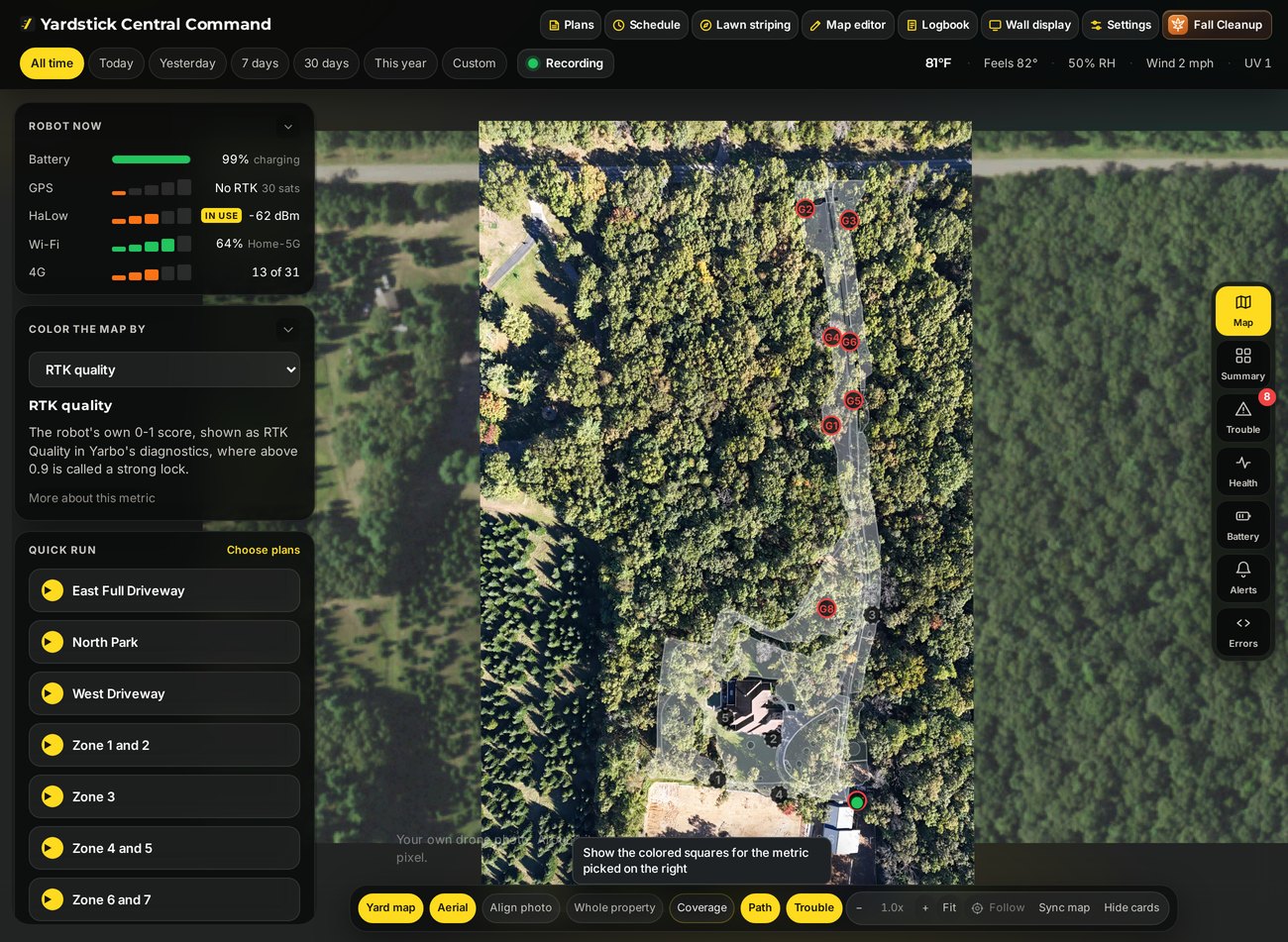
Coverage overlaid on a satellite photo of a real property
● Your data stays yours 293,000+ samples recorded 99.3% fixed RTK 21 data layers Windows · Mac · Linux

A Yarbo first

Fix your map on a screen, not in the yard

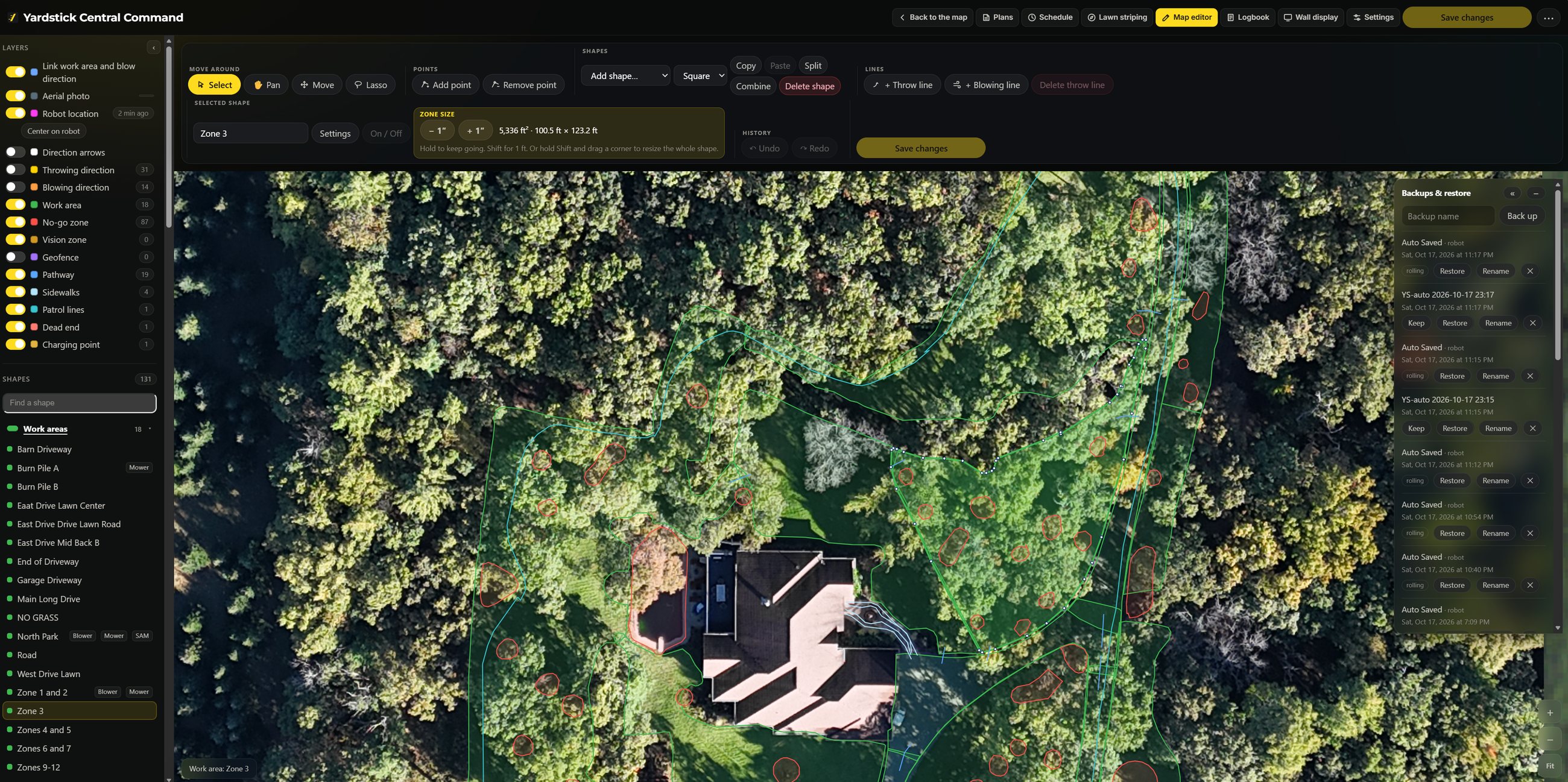
Every work zone, no-go area and pathway drawn over a real photo of your property, edited with a mouse on a full display, and saved straight back to the robot. Reshape a boundary, carve out a garden bed, redraw a whole zone. No one else lets you do it from a computer.

The Yardstick desktop map editor on a wide screen, zoomed in on the yard with one zone selected and its size shown: work areas, no-go zones and pathways drawn over an aerial photo of the property, the full editing toolbar, a layers panel including sidewalks, and a backup and restore tray

Much easier map editing, right on your desktop.

Draw on your yard

  • Automatic aerial photo underlay
  • See every zone's exact size, and grow or shrink it by the inch
  • Reshape any zone or boundary
  • Move a point exactly, snap edges straight
  • Shared borders move together
  • Split or combine zones, settings kept
  • Sidewalks on their own layer

Work on many at once

  • Lasso to select a group
  • Copy and paste shapes
  • Give many areas the same settings
  • Mower, leaf blower and snow blower settings

Save to the robot

  • Writes straight to the Yarbo
  • No phone app
  • Changes show up in the app
  • Map read back from the robot after saving

Automatic backups

  • Backup before every write
  • Every saved map kept in history
  • Restore any earlier map in a click
  • Your mowing plans backed up too

New in Yardstick

Schedule your whole yard, and it runs itself

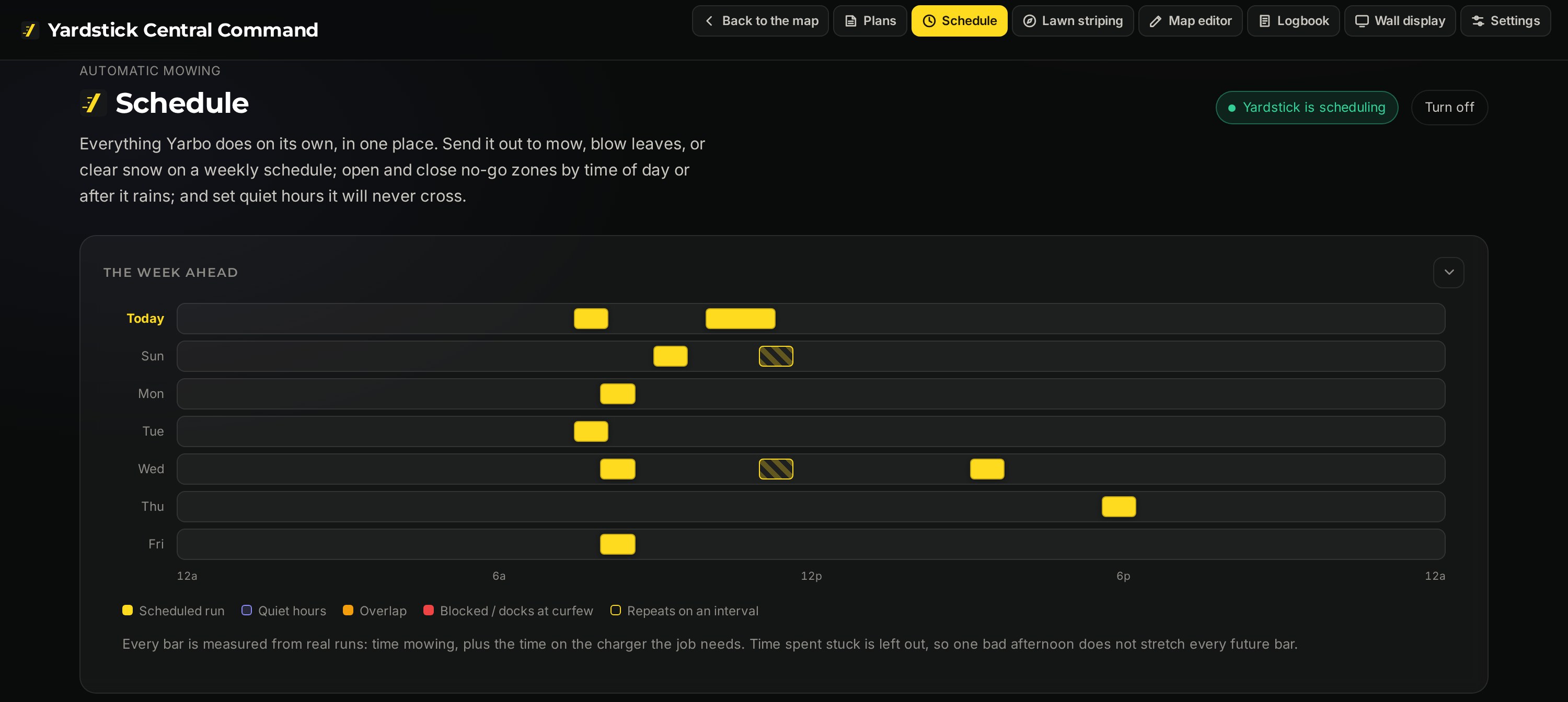
Set the days and the times, and Yardstick sends your Yarbo out to mow, blow leaves or clear snow on its own. Chain areas to run back to back, set quiet hours it will never cross, and open and close no-go zones by time of day or after it rains. One place for everything the robot does on its own.

The Yardstick Schedule page on screen: the Schedule header, Yardstick is scheduling, and the full week-ahead timeline busy with scheduled runs across every day, including interval runs

Set it once. Your whole yard runs itself.

And not just weekdays

Or every few days, like a sprinkler timer

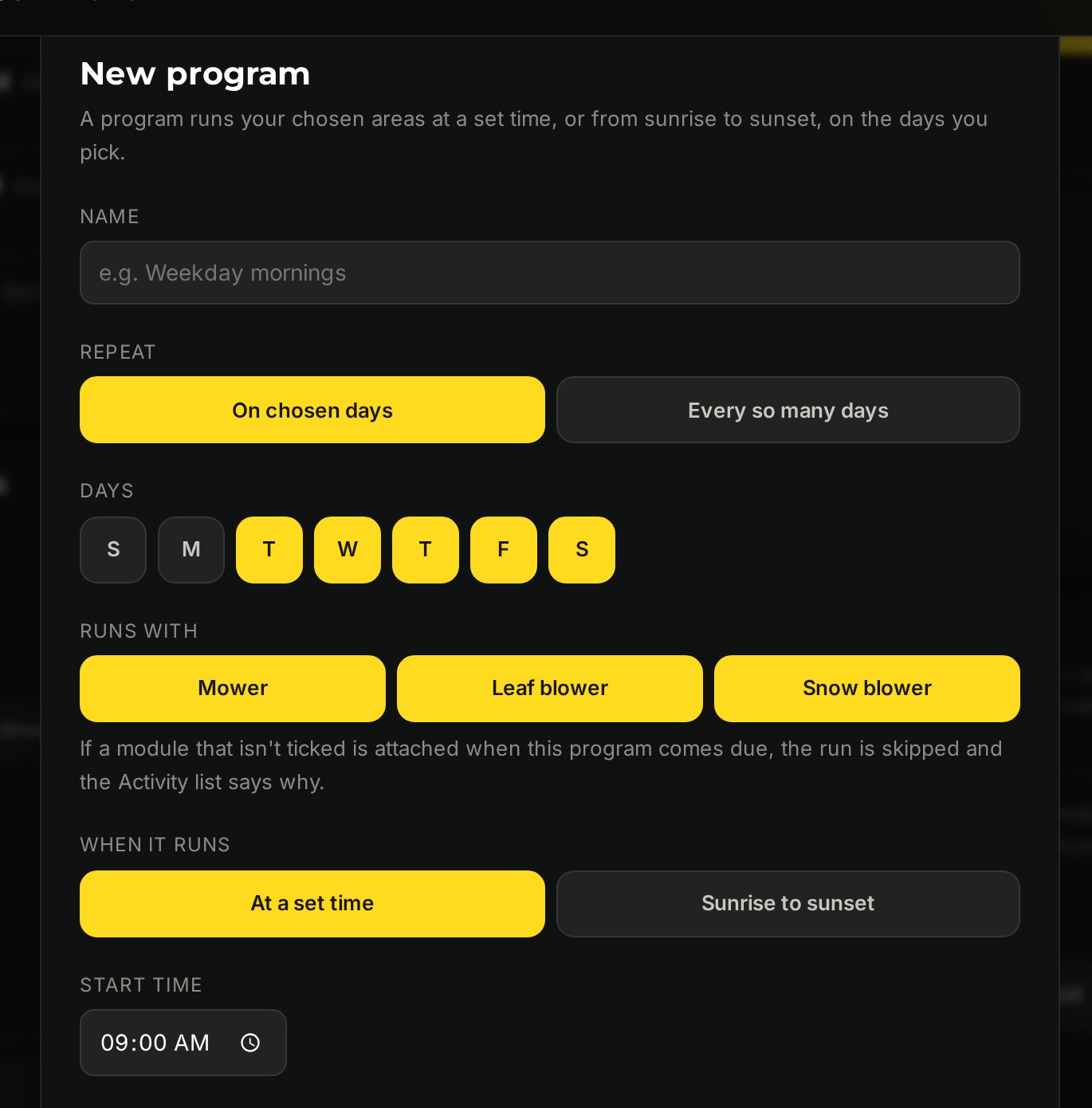
Grass does not grow on a weekly calendar. Set a program to run every 2, 3, 7 or 30 days and Yardstick counts from a date you pick, the way an irrigation timer does. A run that quiet hours or the weather prevents is missed, not moved, so every third day stays every third day instead of sliding later each time something gets in the way. Mix the two freely: a daily pass on the front lawn and the back every third day, in the same schedule.

The New program dialog: a Repeat choice of On chosen days or Every so many days, the weekday buttons, which attachments it runs with, and a When it runs choice of At a set time or Sunrise to sunset
Building a program: pick the weekdays or repeat every so many days, choose the attachments it runs with, and set a time or let it run sunrise to sunset.

Schedule the whole yard

  • Pick the days, or repeat every few days
  • Chain areas to run back to back
  • See the week at a glance

Quiet hours that always win

  • Set a curfew once
  • Robot returns to the dock on time
  • Overrides every schedule

Smart no-go zones

  • Close an area by time of day
  • Or automatically after it rains
  • Opens itself again once it is dry
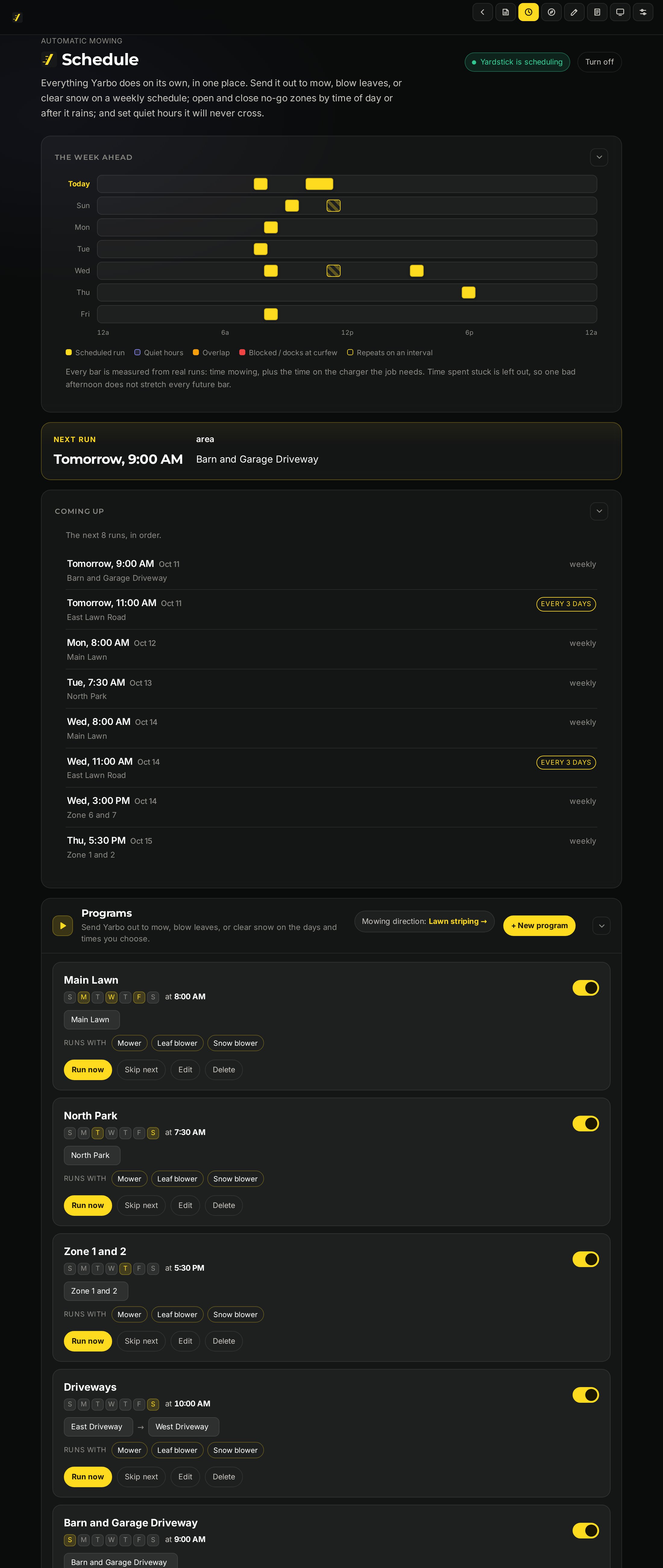
The scheduler: the week-ahead timeline, the next run, the runs coming up, and the list of mowing programs, each with its days, time and attachments
One page for the whole schedule — the week ahead, what is coming up, and every program with its days, time and attachments.

New in Yardstick

Back out when it has enough, not when it is full

A big lawn does not fit in one charge, so your Yarbo goes home part way through to fill up. It just does not know how much work is left, and waits for the same charge whether twenty minutes of mowing remain or three hours.

Yardstick watched the first half, so it does know. It sends the robot back out the moment it is carrying enough to finish. On a job that is nearly done, that is 35% instead of 80%. Often hours earlier.

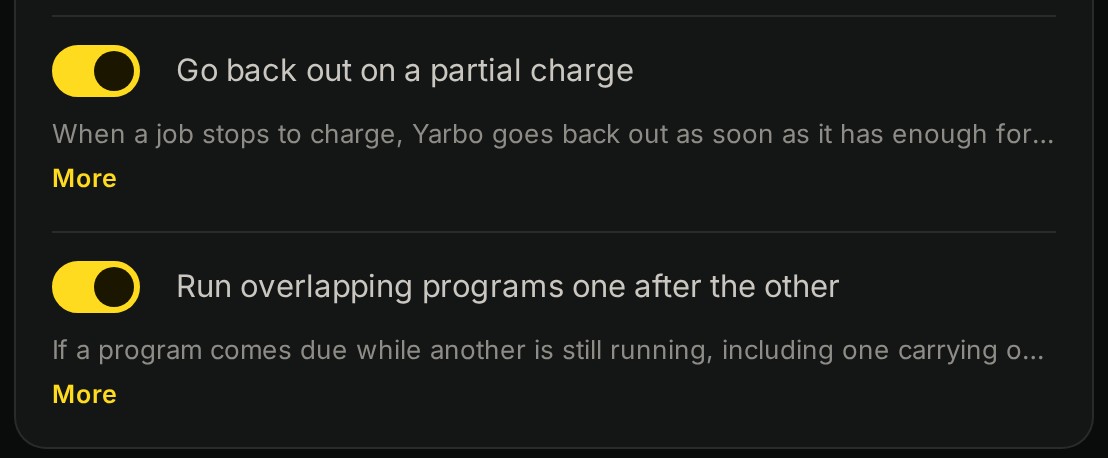
Two switches on the Scheduler page: Go back out on a partial charge, turned on, and Run overlapping programs one after the other, turned on
Both switches live on the Scheduler page: Go back out on a partial charge, and Run overlapping programs one after the other, so a program that comes due while another is still running waits its turn instead of being dropped.

Enough to finish is enough to leave. Often hours earlier.

Sized to the job

  • Reads how much is actually left
  • Uses your machine’s own consumption
  • Gets sharper the more you mow

Never cuts it fine

  • Never leaves the dock below 35%
  • Carries a margin over the estimate
  • Waits for the old level if it cannot measure

Only ever earlier

  • Can bring a resume forward, never delay one
  • Applies to jobs Yardstick started
  • One switch on the Scheduler page

New in Yardstick

Every stripe in your yard, running the same way

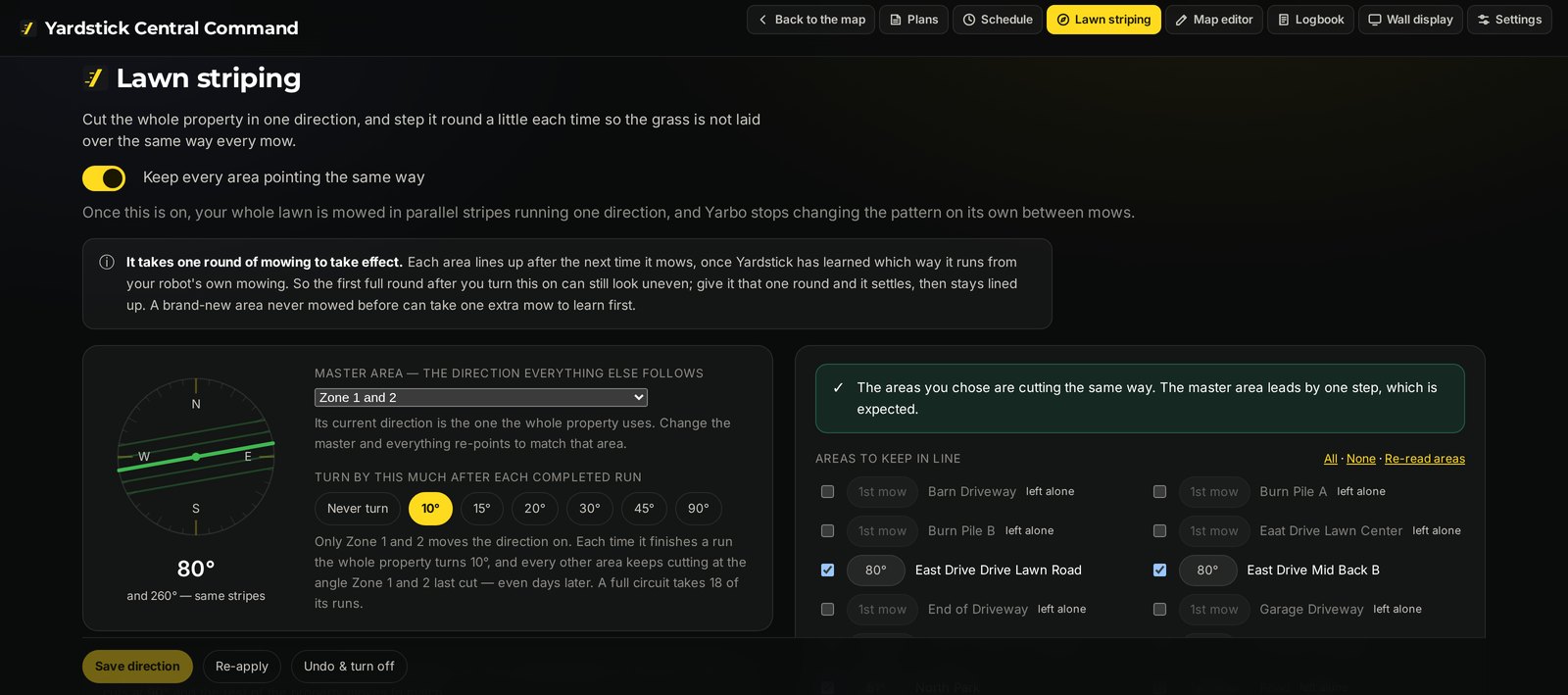
Your Yarbo turns its mowing pattern a few degrees each time so the grass is not pressed down the same way twice. The catch is that it does that separately for every area, and each one keeps its own count. They drift apart. After a season your zones are all cutting at different angles, and you can see every seam where one meets the next.

Yardstick takes that job over. It holds one direction for the whole property and writes it to every area before the robot goes out, so the lines carry straight across your yard instead of stopping at each boundary. Pick the area everything else should follow, choose how far to turn after each run, and the entire property steps round together and stays in line as it goes.

The Yardstick mowing direction panel: a compass dial showing the property cutting at 348 degrees with parallel stripe lines drawn across it, a master area selector set to Zone 1 and 2, a row of turn amounts with 10 degrees chosen, and a confirmation that all 10 chosen areas are cutting the same way

One direction for the whole property. Every zone in step.

One direction, everywhere

  • Every area you pick cuts the same way
  • Set it from one master area
  • Zones you leave out are untouched

Turns without breaking rank

  • Steps round after each completed run
  • 10°, 15°, 20°, 30° or 45°, or never
  • The whole yard moves as one

Puts itself back

  • Re-applied before every run
  • Corrects any zone the robot nudges
  • One click restores your originals
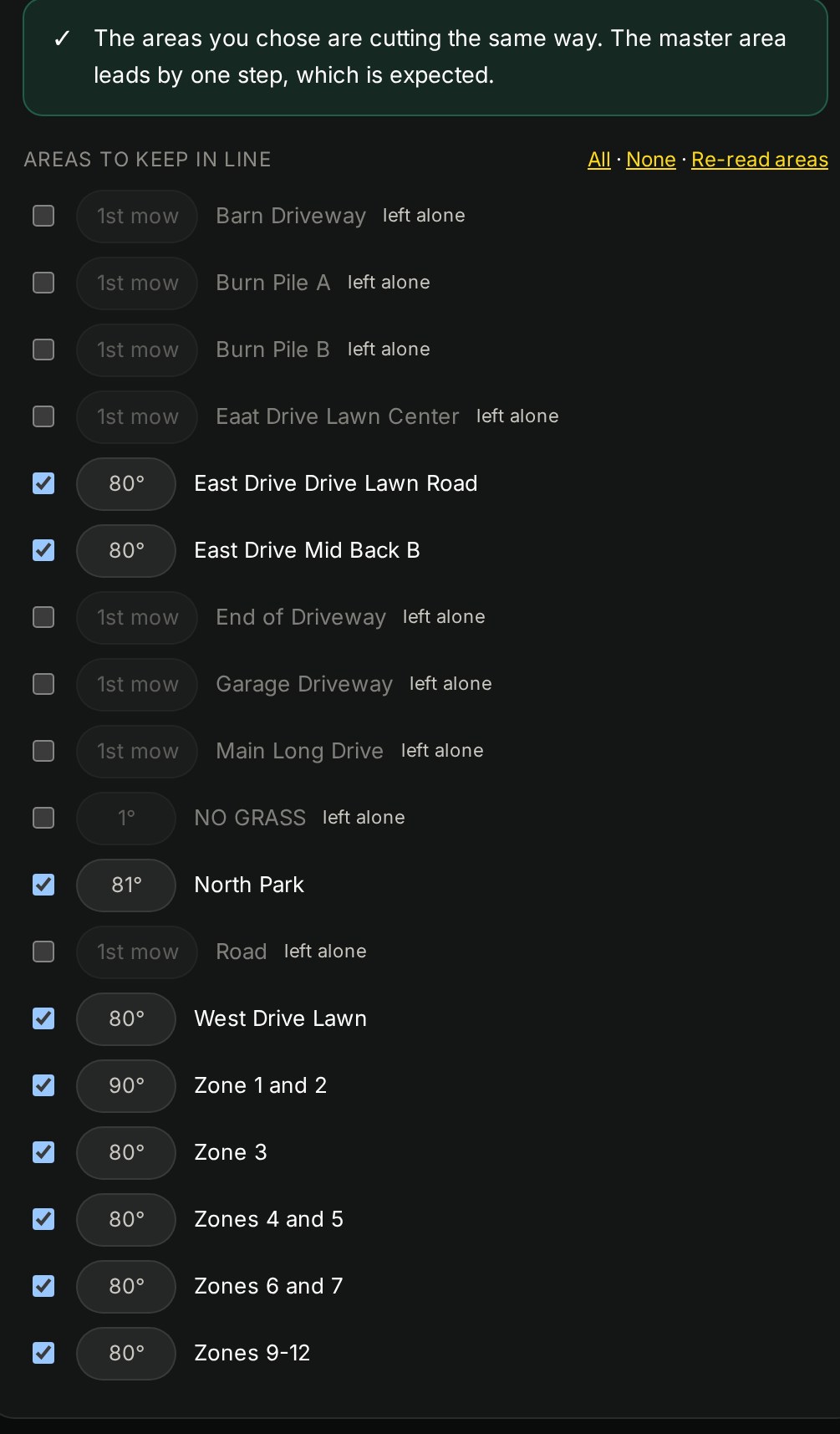
The areas-to-keep-in-line list: every chosen zone reading the same heading beside it, and the areas left out marked left alone
Every zone you choose, reading the same heading — and the ones you did not, left alone.

The problem

Your Yarbo forgets. Yardstick remembers.

Out of the box, a Yarbo tells you almost nothing after a job: no history, no honest map of what it actually covered, no warning when the fix is drifting or a battery cell is running hot. Yardstick reads the robot’s own telemetry on your network and keeps all of it, then hands it back as something you can understand at a glance.

What you get

The detail Yarbo collects, finally made visible

Your robot streams a flood of telemetry and throws almost all of it away. Yardstick keeps it and turns it into six plain-English views you can actually read.

Summary

Everything about the robot, at a glance

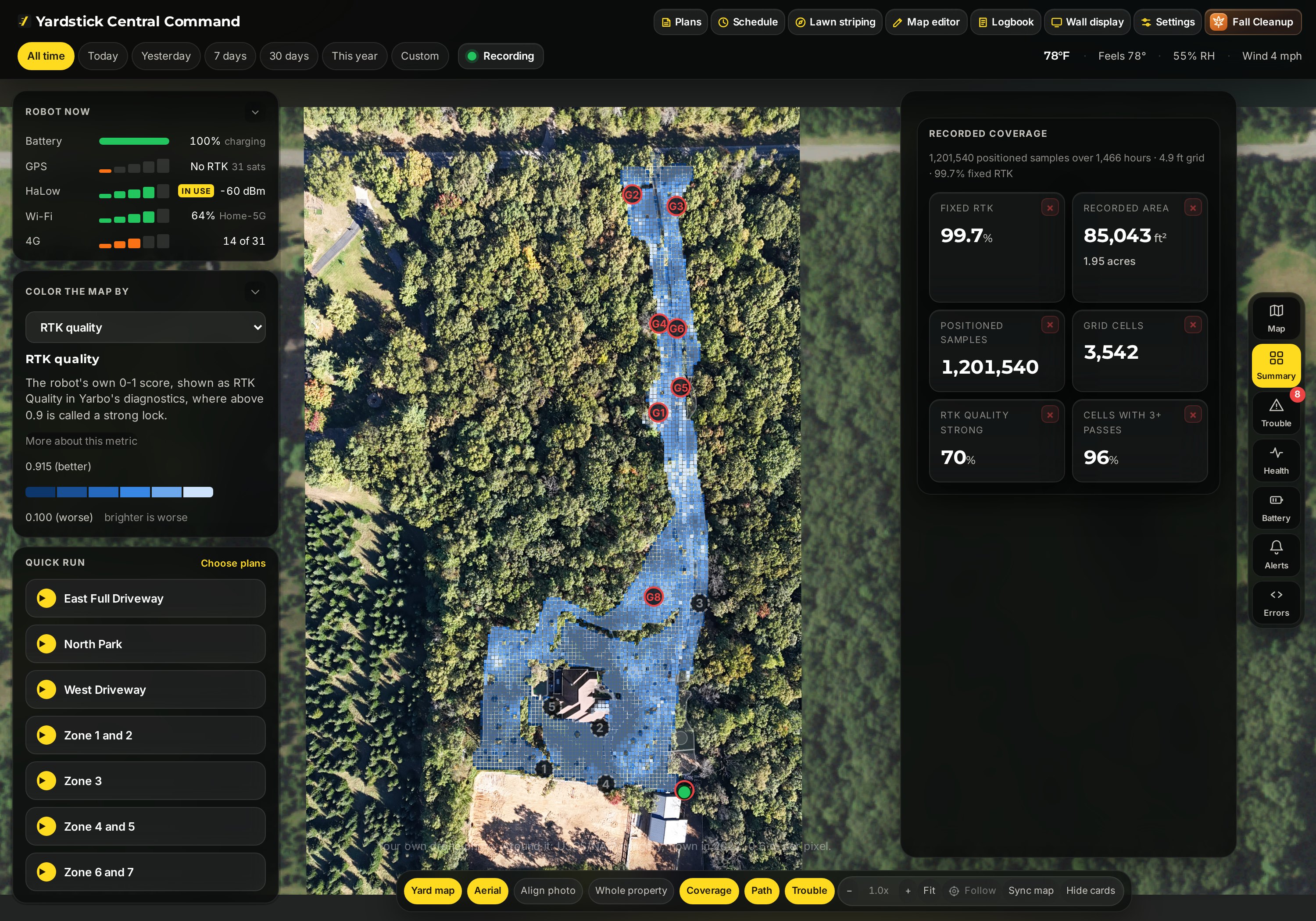
The first thing you see: the robot right now, its battery, GPS lock, HaLow and Wi-Fi signal, and your recorded coverage — how much of the yard it has reached, to what accuracy, over how many hours and passes. The whole picture before you click a thing.

The Summary view: the robot now, its radio and GPS signal, and recorded-coverage figures over an aerial of the yard

Trouble

The spots your robot keeps struggling with

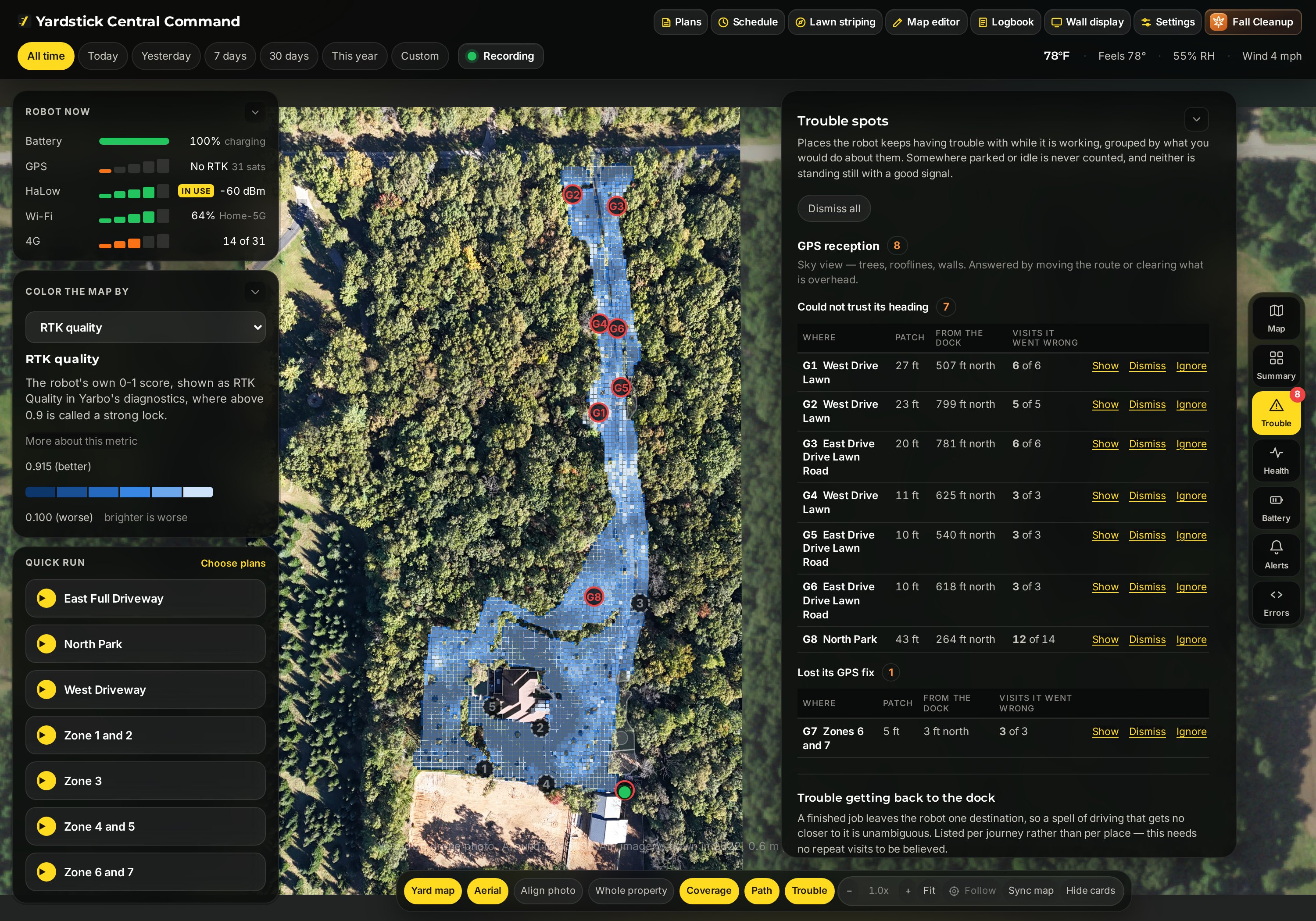
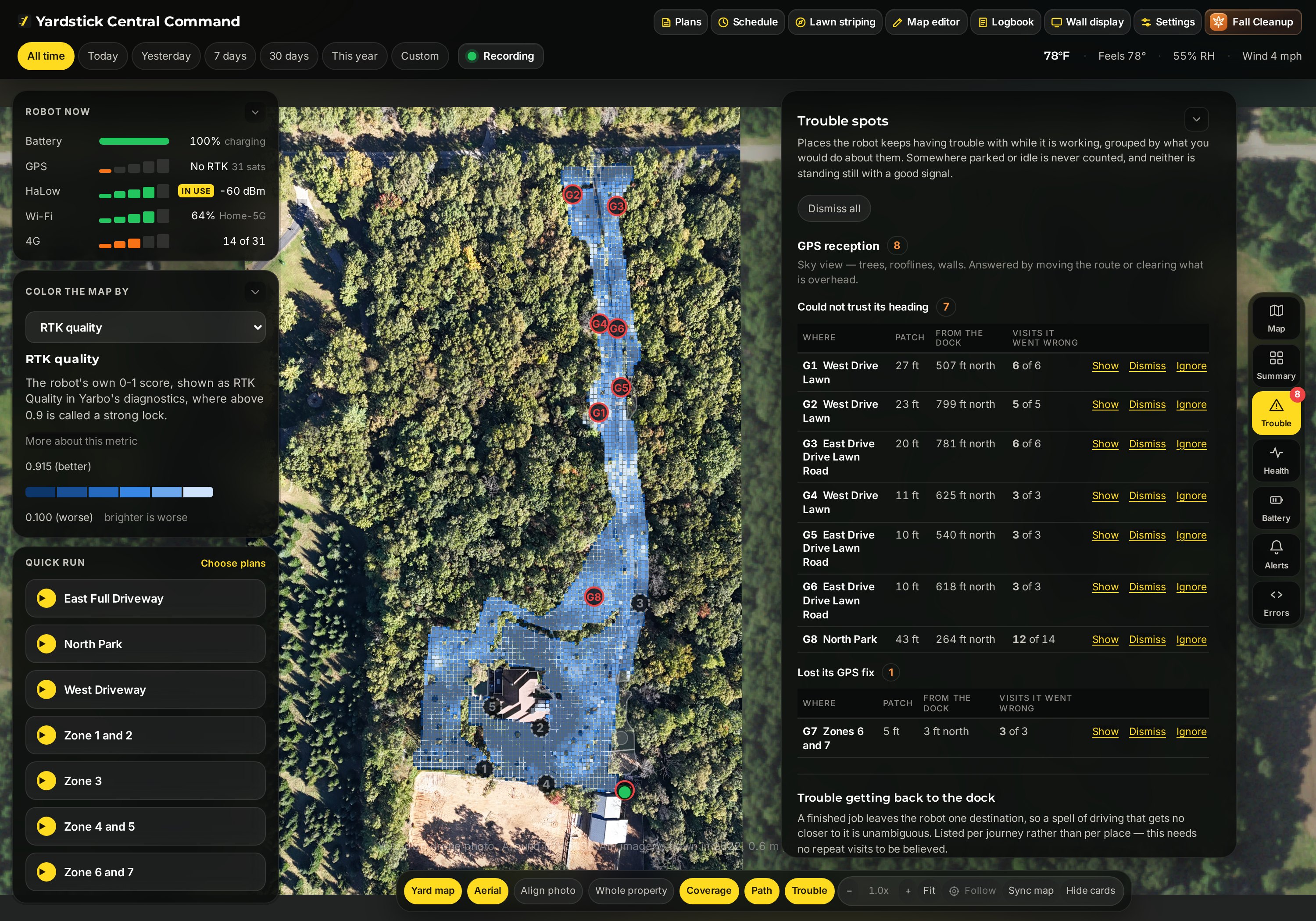
Yardstick groups every place the robot had trouble by what you would do about it: a poor sky view, a heading it could not trust, a fix it lost, a dock it could not get back to. Each one is placed on the map and ranked by how often it went wrong, so you fix the cause, not the symptom.

The Trouble view: trouble spots grouped by cause, a table of where and how often each happened, and numbered markers on the map

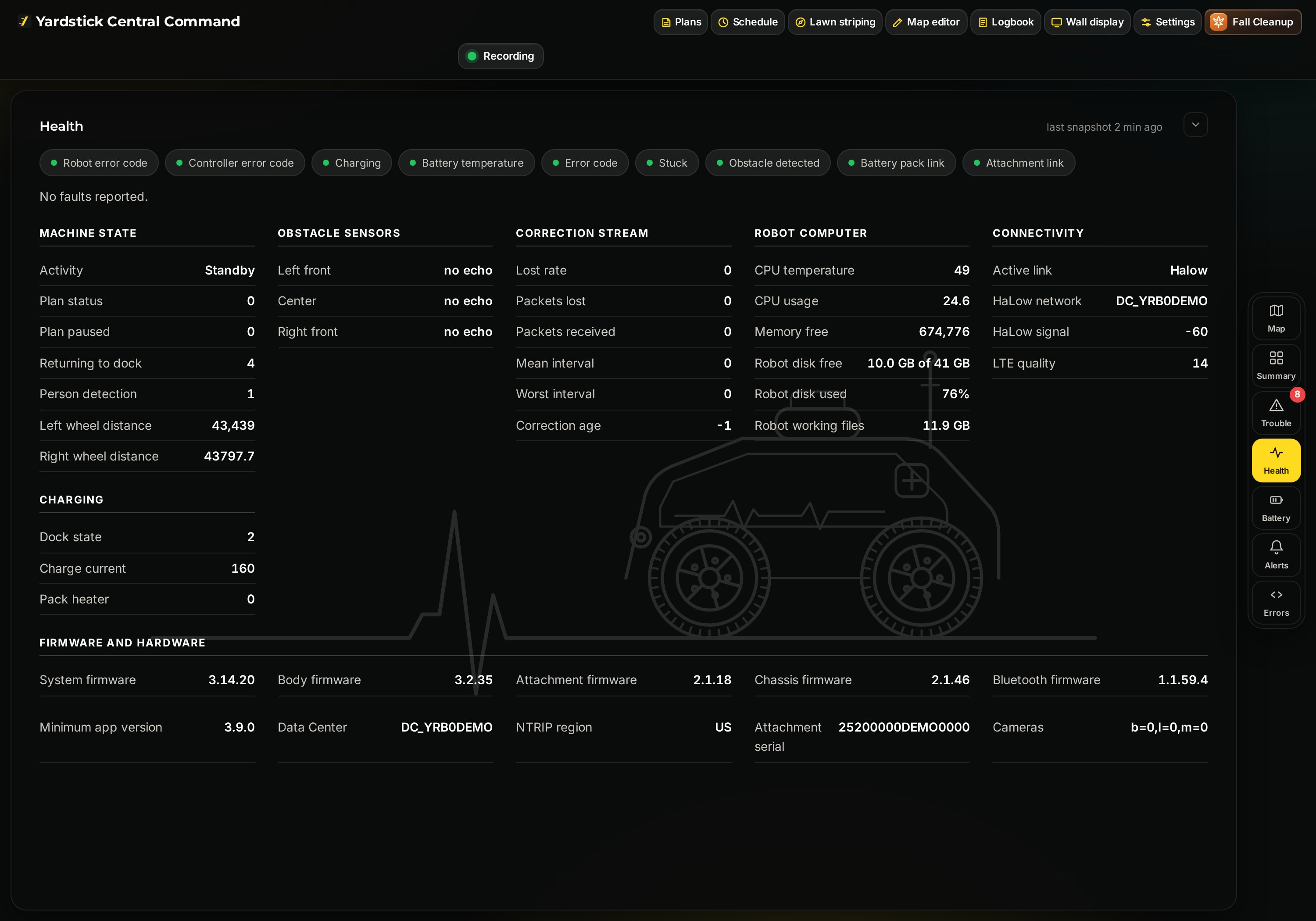
Health

Every sensor reading, out of range flagged

The robot’s full hardware picture in one place: machine state, the obstacle sensors, the correction stream, the on-board computer, connectivity, and every firmware version. Anything out of range is flagged, so a problem shows up here before it strands the robot.

The Health view: machine state, obstacle sensors, correction stream, on-board computer, connectivity and firmware versions

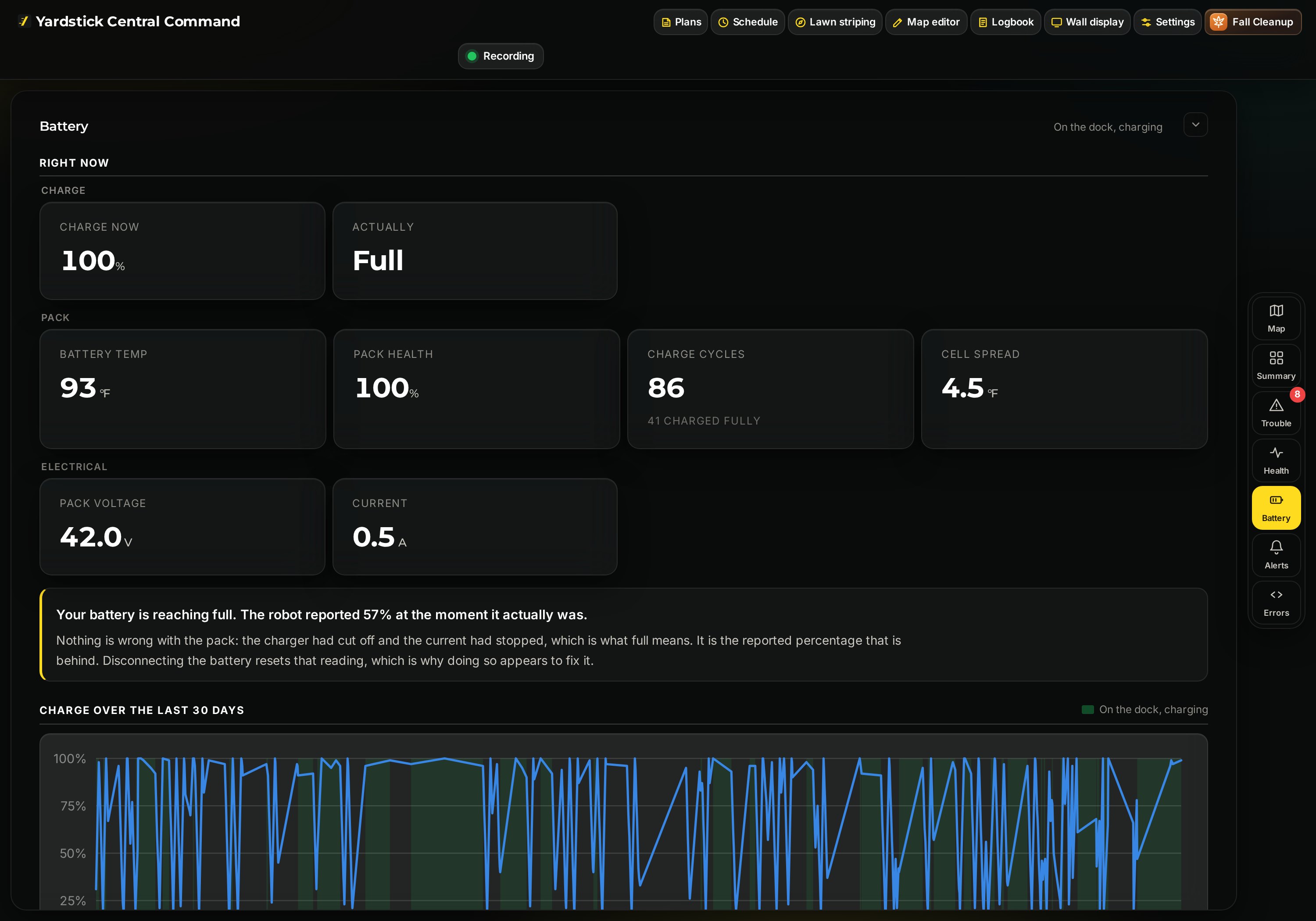
Battery

Catch a failing battery before it strands you

Charge now and what “full” really means, pack health, charge cycles, cell spread and temperature, with a thirty-day charge history. A cell drifting hot shows up here long before it leaves the robot stuck at the far end of the yard.

The Battery view: charge now, pack health, charge cycles, cell spread, pack voltage and a thirty-day charge history chart

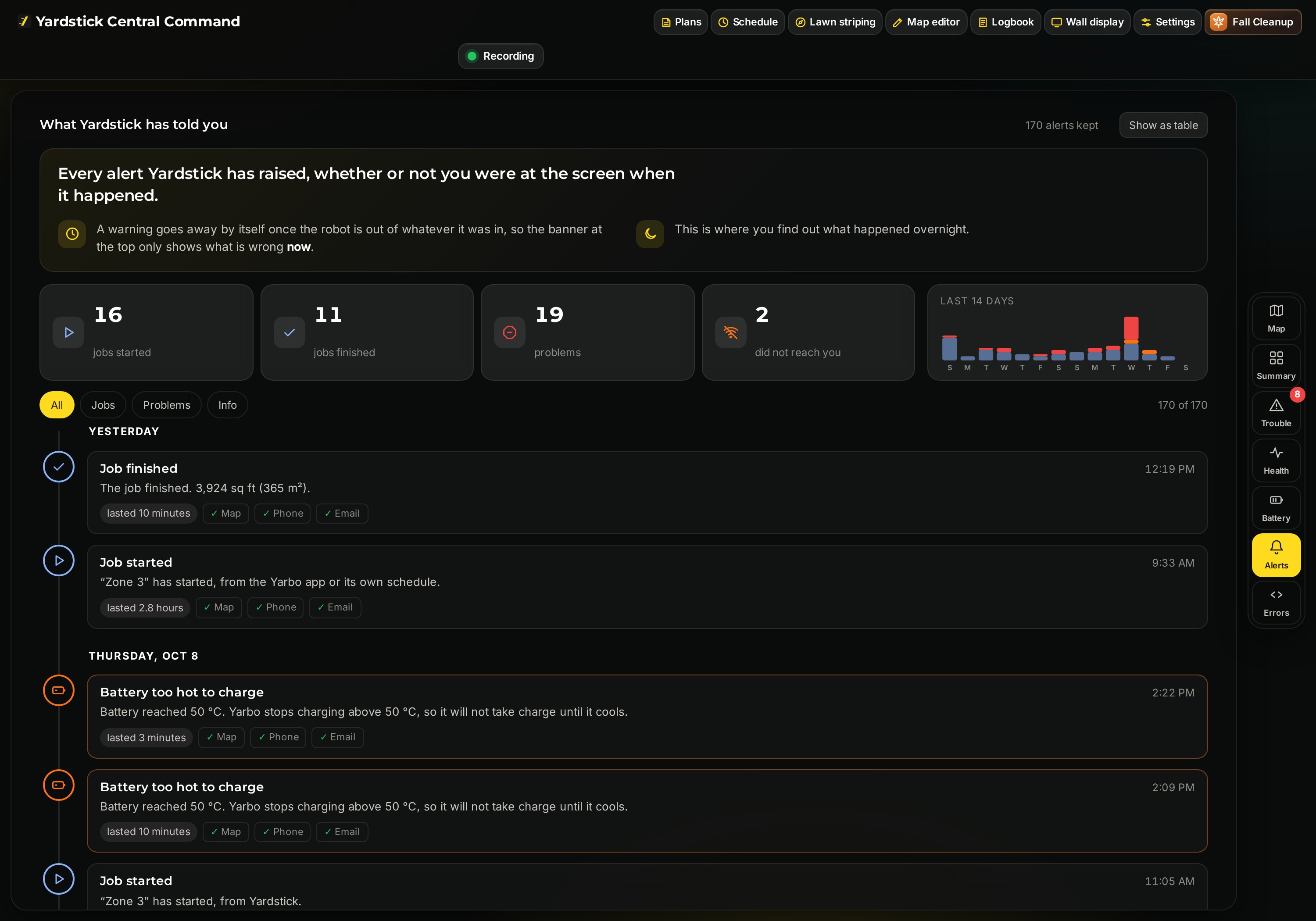
Alerts

Every alert it ever raised, even overnight

A full history of what Yardstick told you, when, and whether it reached your screen, your phone and your email. Jobs started and finished, problems, and the handful that did not get through — all kept, so you can see exactly what happened while you were asleep.

The Alerts view: counts of jobs started, finished and problems, a 14-day chart, and a timeline of alerts with screen, phone and email delivery marked

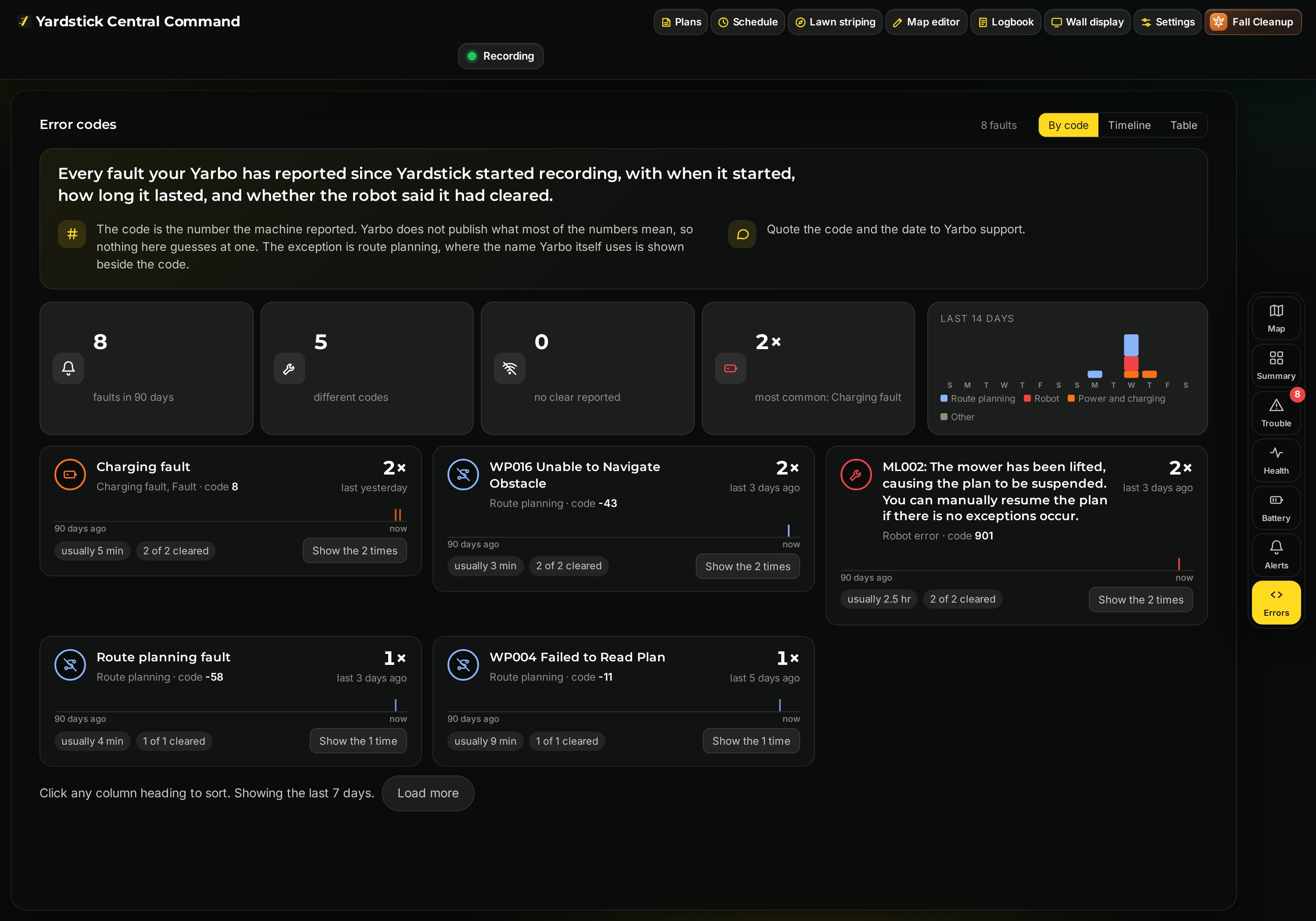
Errors

Every fault code, how long, whether it cleared

Every error the robot has reported since you started recording, grouped by code, with how often it happens, how long it usually lasts, and whether the robot said it cleared. When you call Yarbo support, you can quote the exact code and the date.

The Errors view: fault counts, a 14-day breakdown by type, and each error code with how often and how long it lasted

Logbook

An hour-meter and a service log for your Yarbo

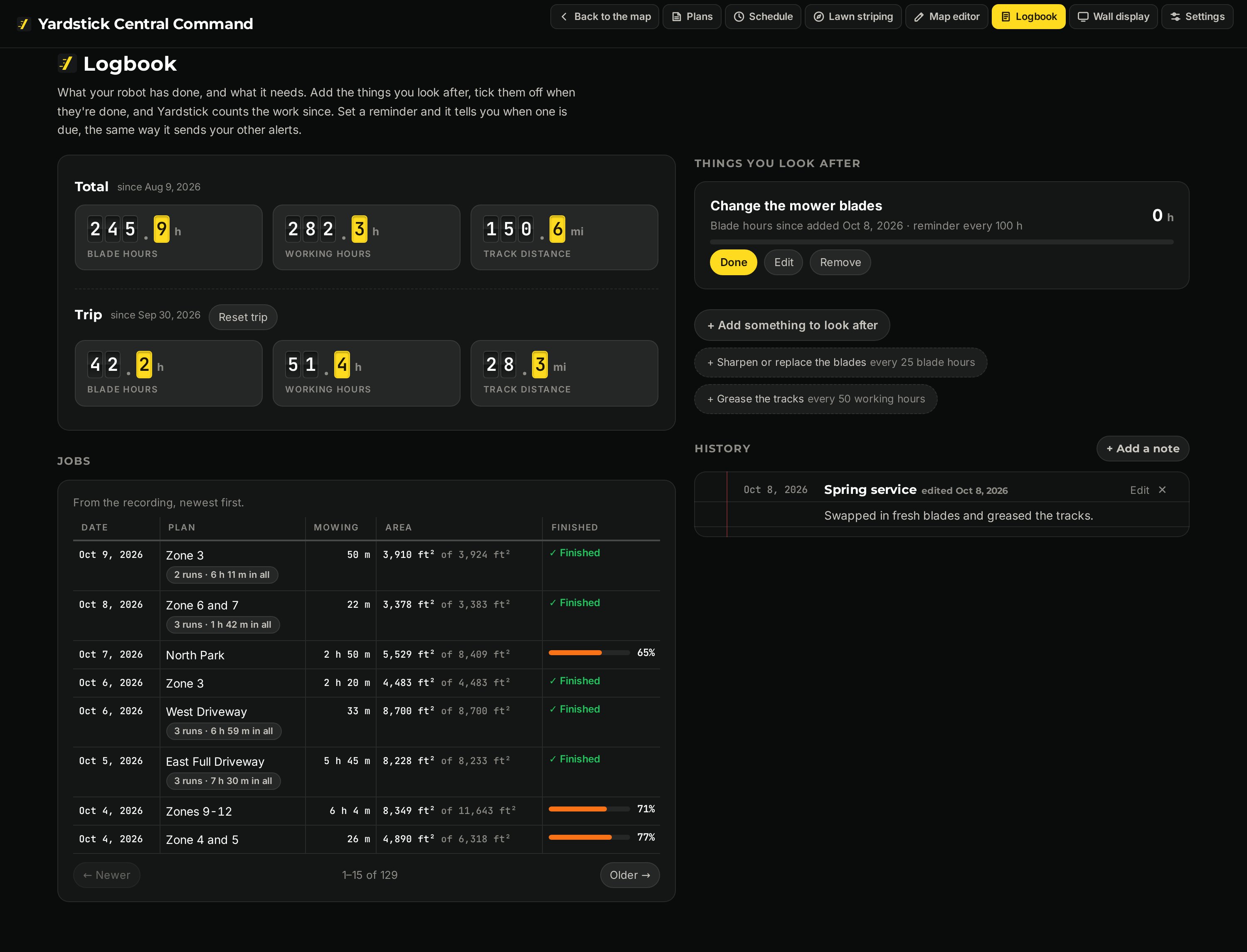
Yardstick counts the work your robot has done — blade hours, working hours and distance — and keeps a running log of every job. Set a reminder for the things you look after, like sharpening the blades or greasing the tracks, and it tells you when one is due, the same way it sends your other alerts.

The Logbook: odometer-style totals for blade hours, working hours and distance, a resettable trip, a table of past jobs with area covered, and maintenance reminders
Blade hours, working hours and distance, a job-by-job history, and maintenance reminders that come due like any other alert.

Alerts

Know the moment something goes wrong

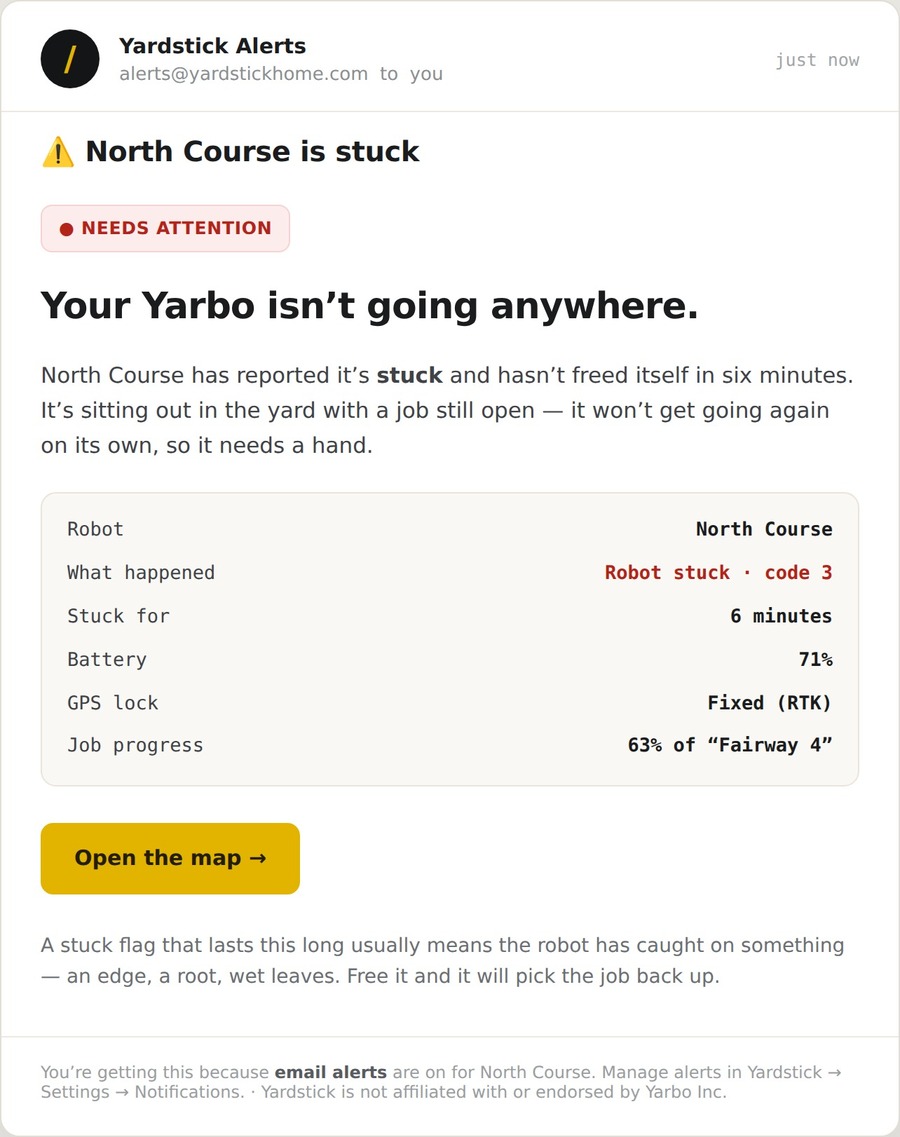
A robot that jams at seven in the morning is no use to anyone if nobody hears about it. Yardstick watches the telemetry and speaks up the instant a robot is stuck, off its map, or can’t find the dock, on screen, on your phone, or by email. Nothing routine; only what actually needs you.

An email the moment a robot needs a hand, with everything you need to decide
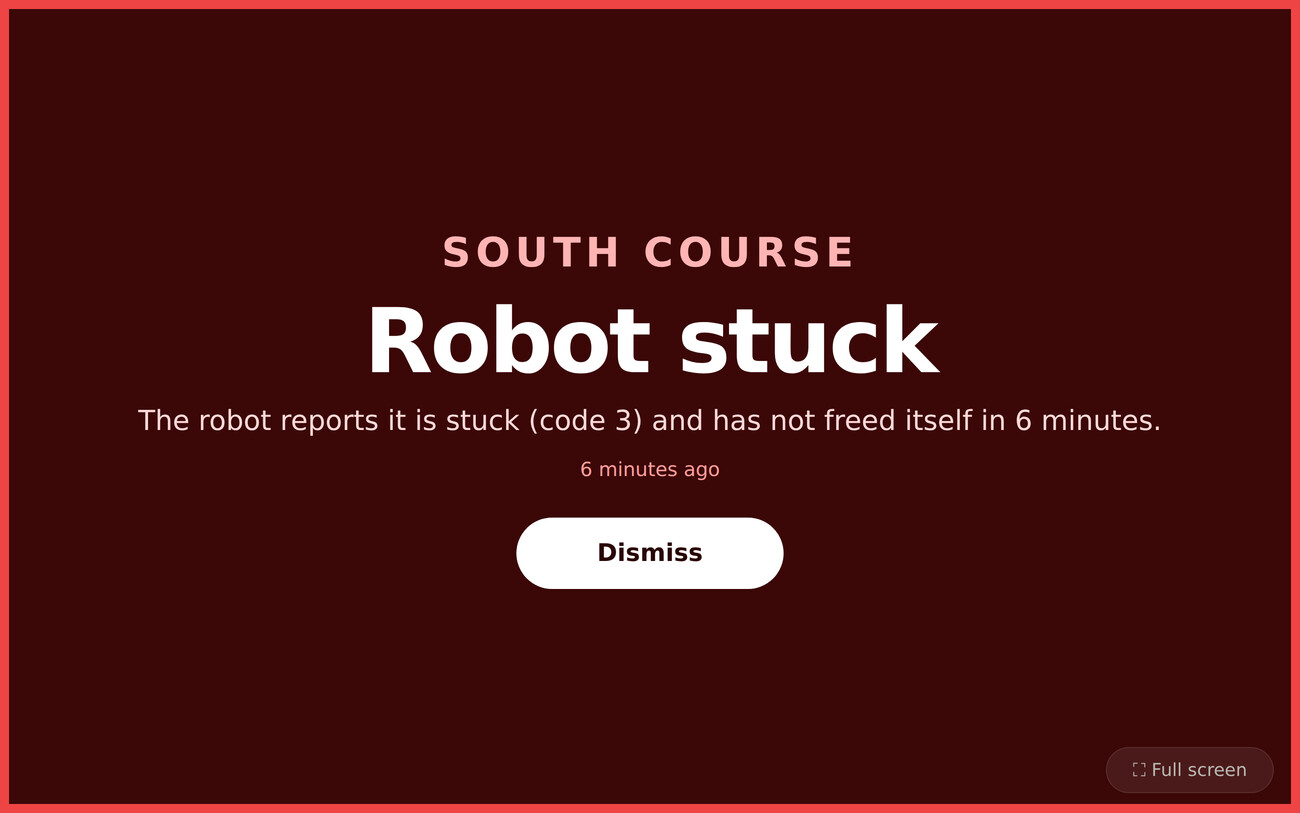
Impossible to miss on the wall display, named to the exact core

Twenty-one data layers

Twenty-one ways to read the same yard

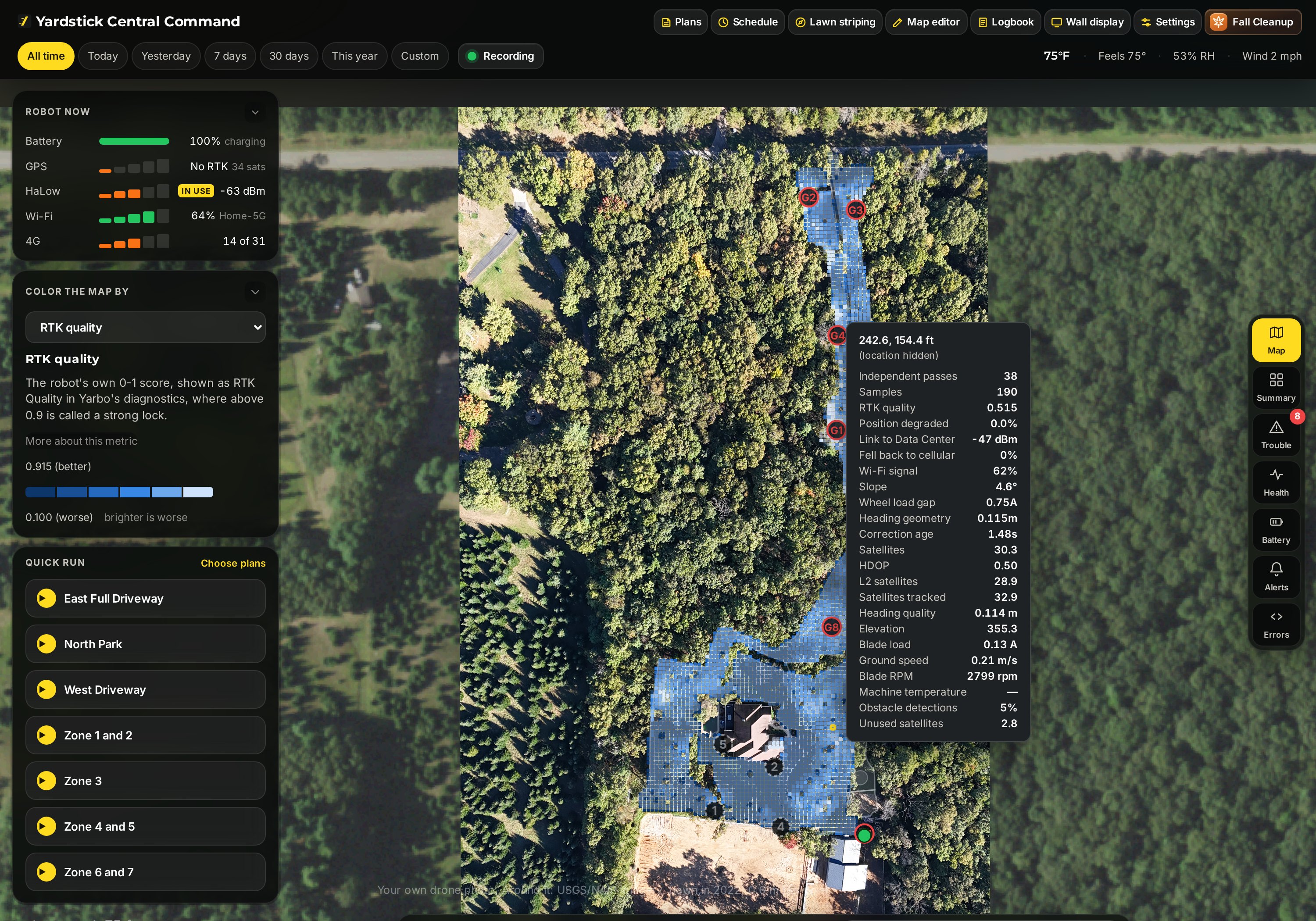
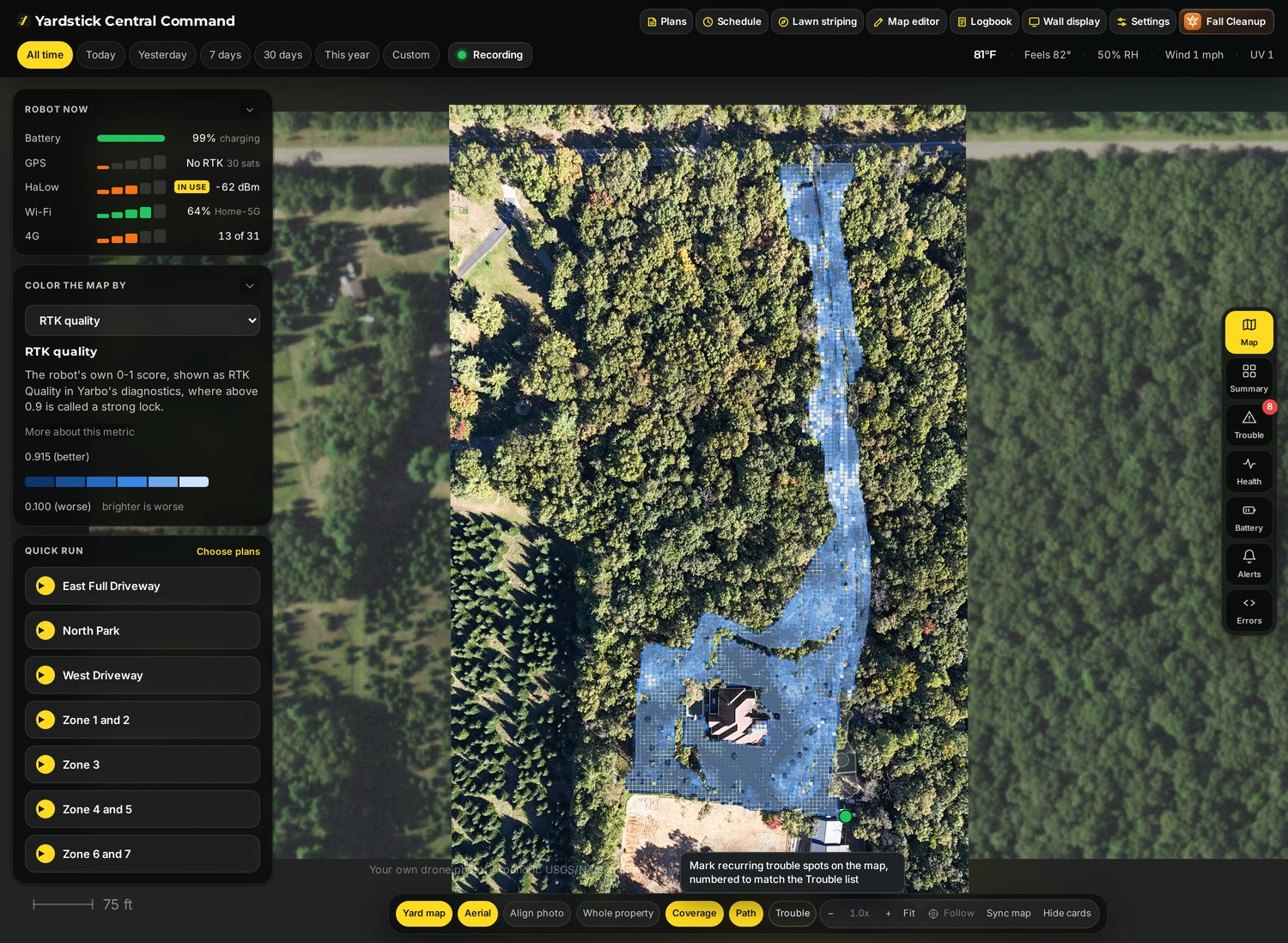
Pick a layer and the whole map re-colors, right down to the individual cell. Hover any cell to read every measure Yardstick captured there; zoom all the way in and each dot is one patch of grass, each outline an obstacle the robot drove around.

The map colored by RTK quality with a cell hovered, a readout card listing all twenty-one measures recorded for that patch of yard
Hover any cell and every one of the twenty-one measures recorded for that patch of yard appears at once. The ring marks a logged trouble spot.
The map with the Trouble panel open, every place the robot struggled grouped by cause with a table of where and how often, and numbered markers on the aerial
Click Trouble and the whole card opens: every spot the robot struggled with, grouped by cause, counted, and marked on the map.

Positioning & RTK

  • RTK quality
  • Position degraded
  • Correction age
  • Heading geometry
  • Heading quality

Satellites

  • Satellites
  • Satellites tracked
  • L2 satellites
  • Unused satellites
  • HDOP

Radio & link

  • Link to Data Center
  • Wi-Fi signal
  • Fell back to cellular

Terrain

  • Elevation
  • Slope

Cutting & hardware

  • Blade load
  • Blade RPM
  • Ground speed
  • Wheel load gap
  • Machine temperature

Safety

  • Obstacle detections

Yours to configure

Set it up the way you run your yard

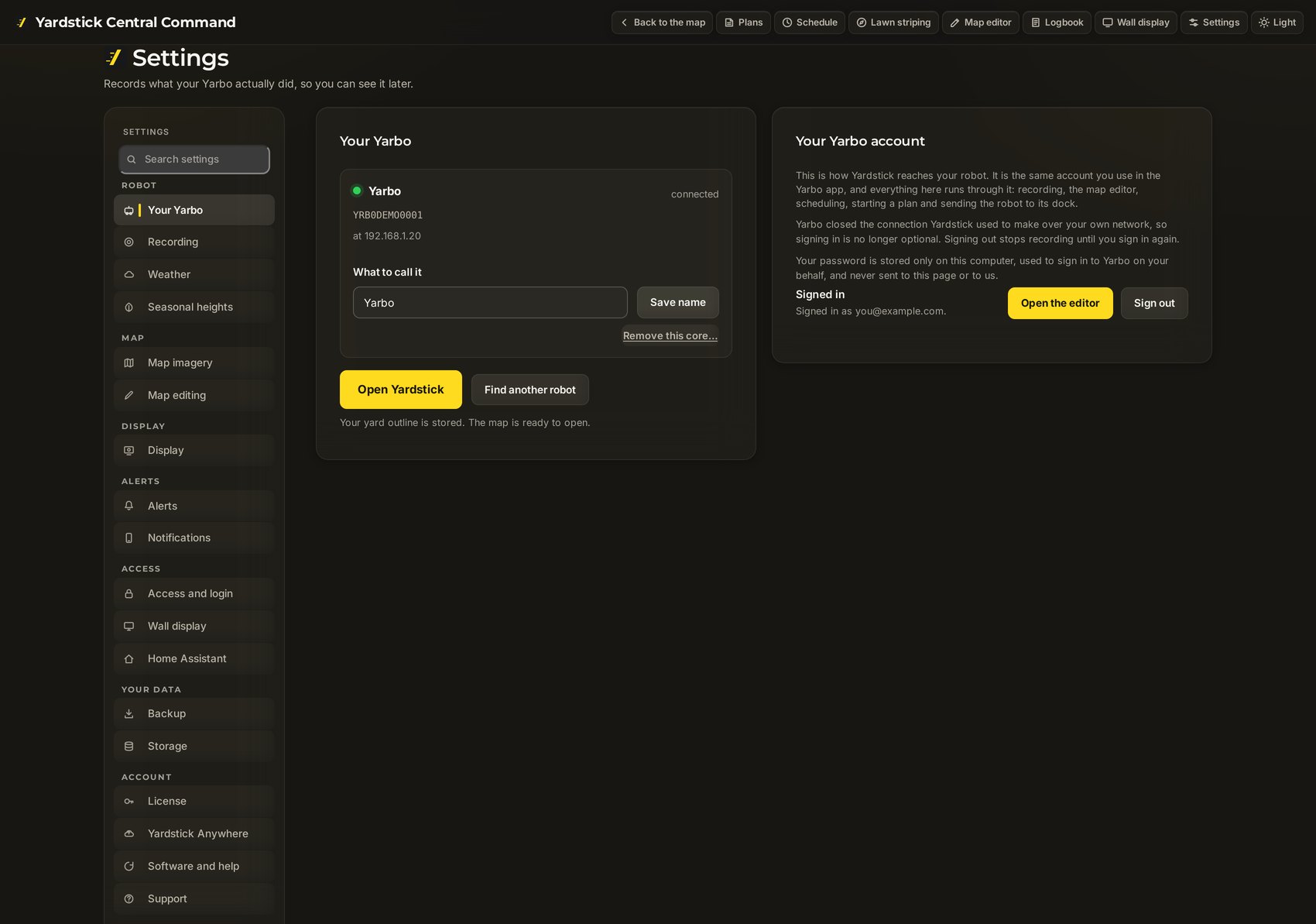
Thirteen areas of settings sit behind one page. What gets recorded and how much, where it is stored and how it is backed up, which faults raise an alert and how you are told, who can reach the page and how, the wall display, the map imagery, cameras and your license. Sensible defaults out of the box, and every one of them is yours to change when you are ready.

Thirteen sections of settings, from recording and storage to alerts, access and the wall display

How it works

Three steps, then it just runs

Install

One download

A signed installer for Windows, or one command on a Mac or Linux box. It walks you through connecting to your Yarbo.

Record

It listens

Yardstick quietly records every job to a database on your own machine, with nothing to manage. Leave it on.

See

Open a browser

Open Central Command from any device on your network. The map fills in as the robot works: worth a look after the first job, worth trusting after a week.

Yours, and only yours

Your recordings never leave your machine

Every job Yardstick records is written to a database on your own computer and read back in your own browser. Coordinates, your yard outline, the names you gave your areas, all of it stays where you put it.

  • ✓ Your recordings are never uploaded to us.
  • ✓ No Yardstick account to create.
  • ✓ Years of history, on a disk you control.
  • ✓ It’s your data. Use it however you want.

The map is live

Watch the robot work and see every trouble spot

The map isn’t a report you wait for. A green dot tracks the robot in real time as it moves. The instant a spot gives it trouble, a degraded fix or a route home it couldn’t finish, it’s marked and numbered right on the map.

Live position (green) and highlighted trouble spots, right on the aerial

Real-time tracking, and nothing missed

The green dot is the robot, now. Leave the map open and watch it cover the yard live, or scrub back through any past session the same way.

  • Live position, updated as the robot drives
  • Trouble spots highlighted and numbered on the map
  • Click a spot in the list and the map jumps straight to it
  • Every degraded fix and failed route-home, caught and placed

Wall display

Put the whole yard on a TV

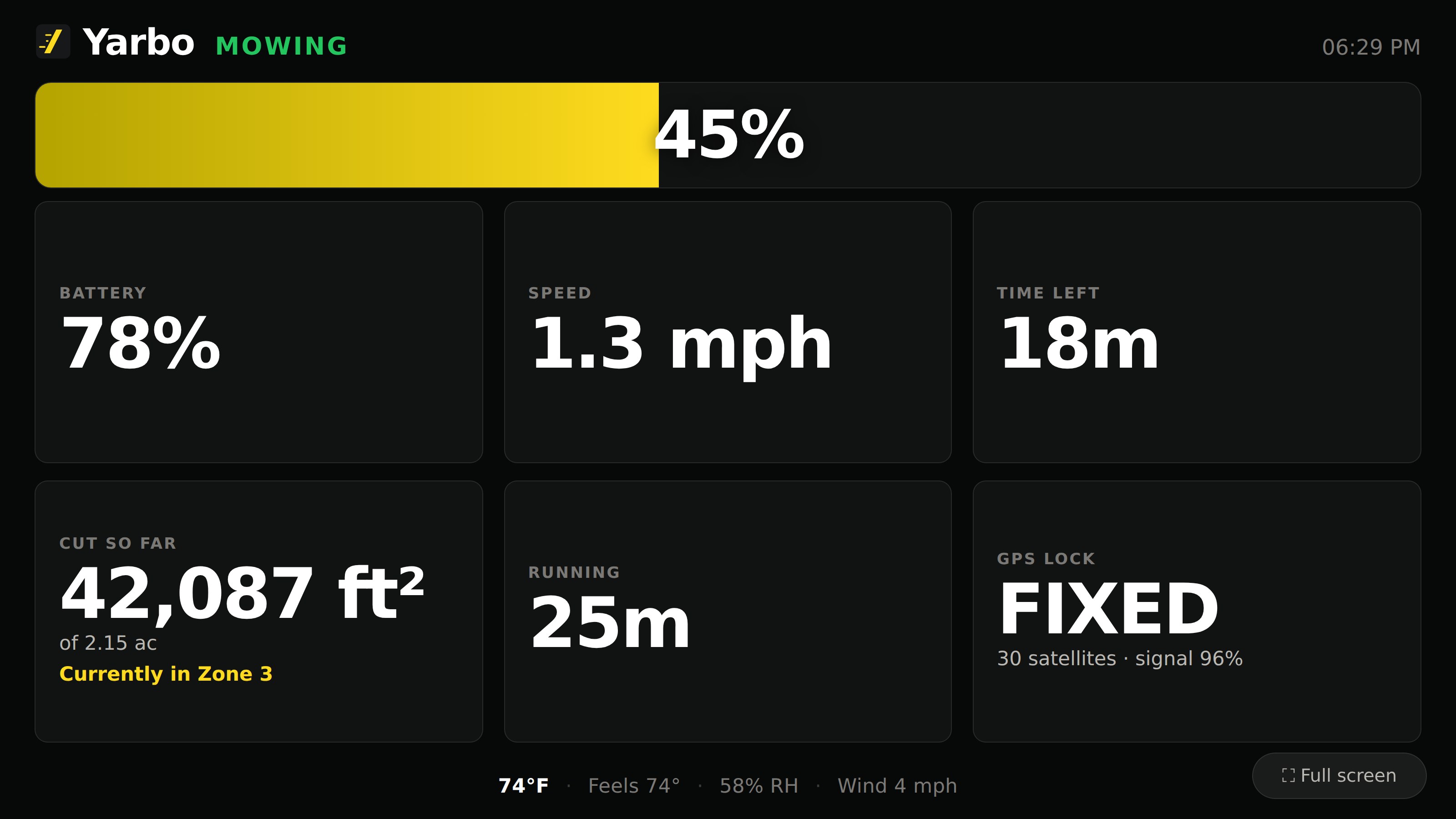
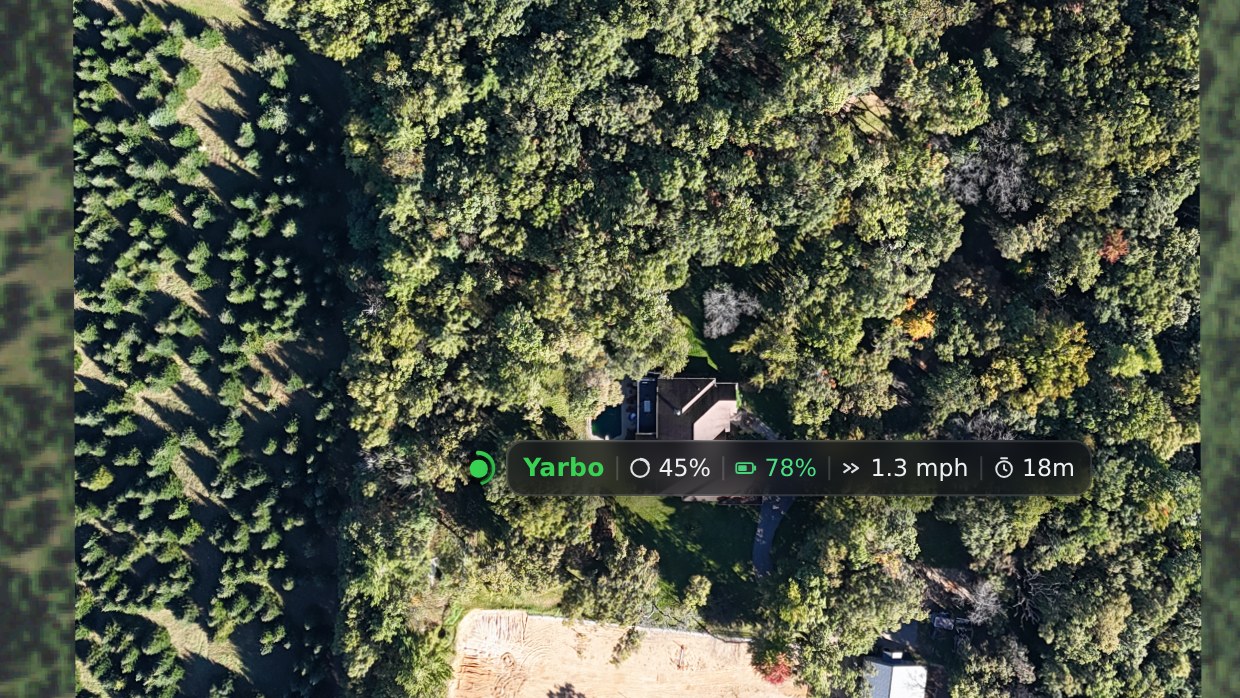
Open Yardstick on any spare TV, tablet, or monitor and leave it there. A big, read-it- from-across-the-room board of progress, battery, speed, time left and GPS lock, for the garage, the clubhouse, or the ops room. It goes full-screen on its own, needs no keyboard, and flips to a loud, impossible-to-miss alarm the moment a robot needs help.

It rotates between a big stats board and a live map of the yard — each robot a dot, with its own stats riding alongside.

The Yardstick wall display stats board on a TV, a robot mowing: 45 percent done, 78 percent battery, 1.3 mph, 18 minutes left, and a fixed GPS lock
The stats board: progress, battery, speed, time left and GPS lock, big enough to read across the room.
The Yardstick wall display live map, zoomed to the robot as it mows the yard with its stats riding alongside it
The live map, zoomed to the robot as it works, its stats riding right alongside it.

Plans

Start any plan, from any core

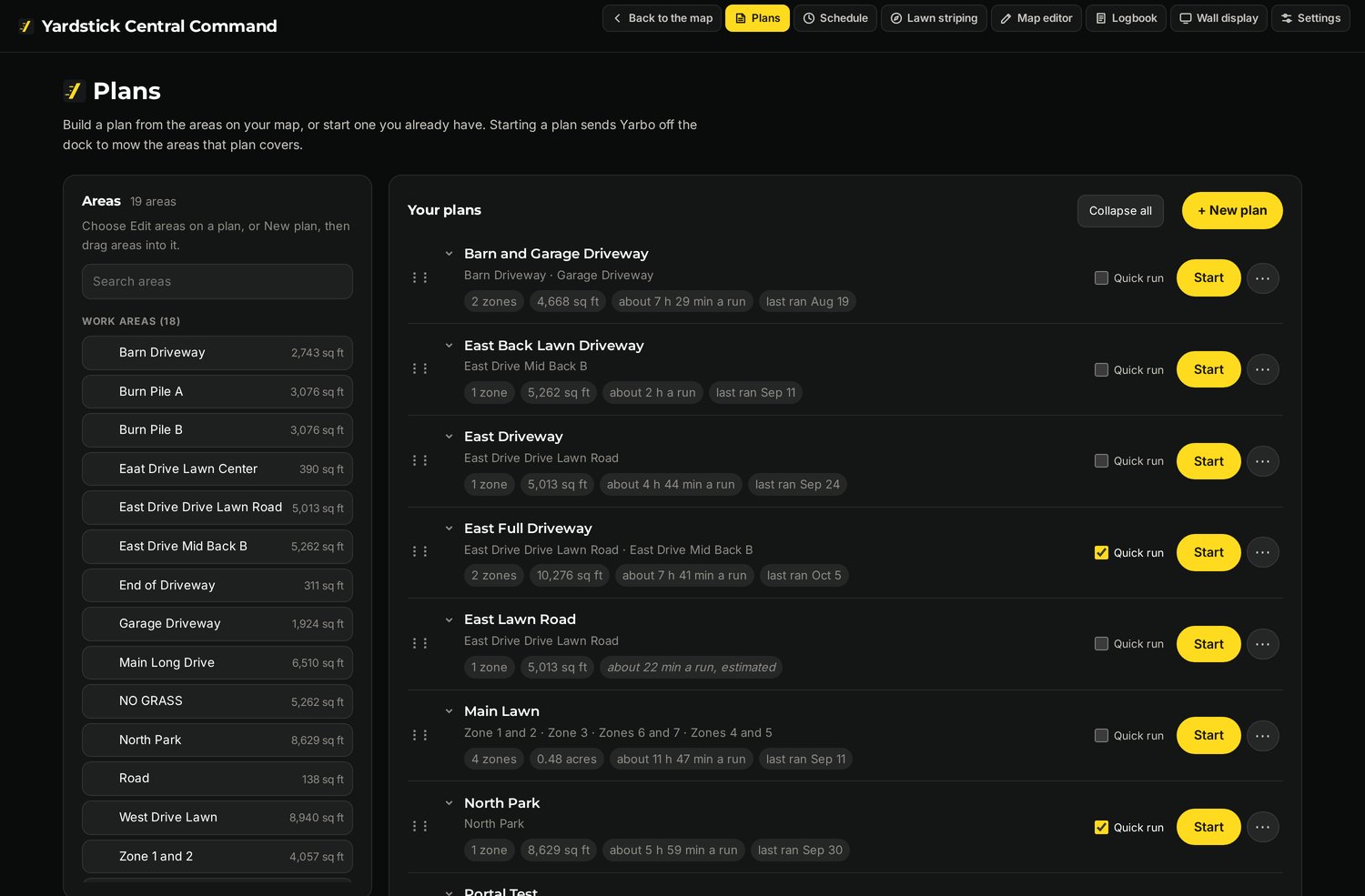
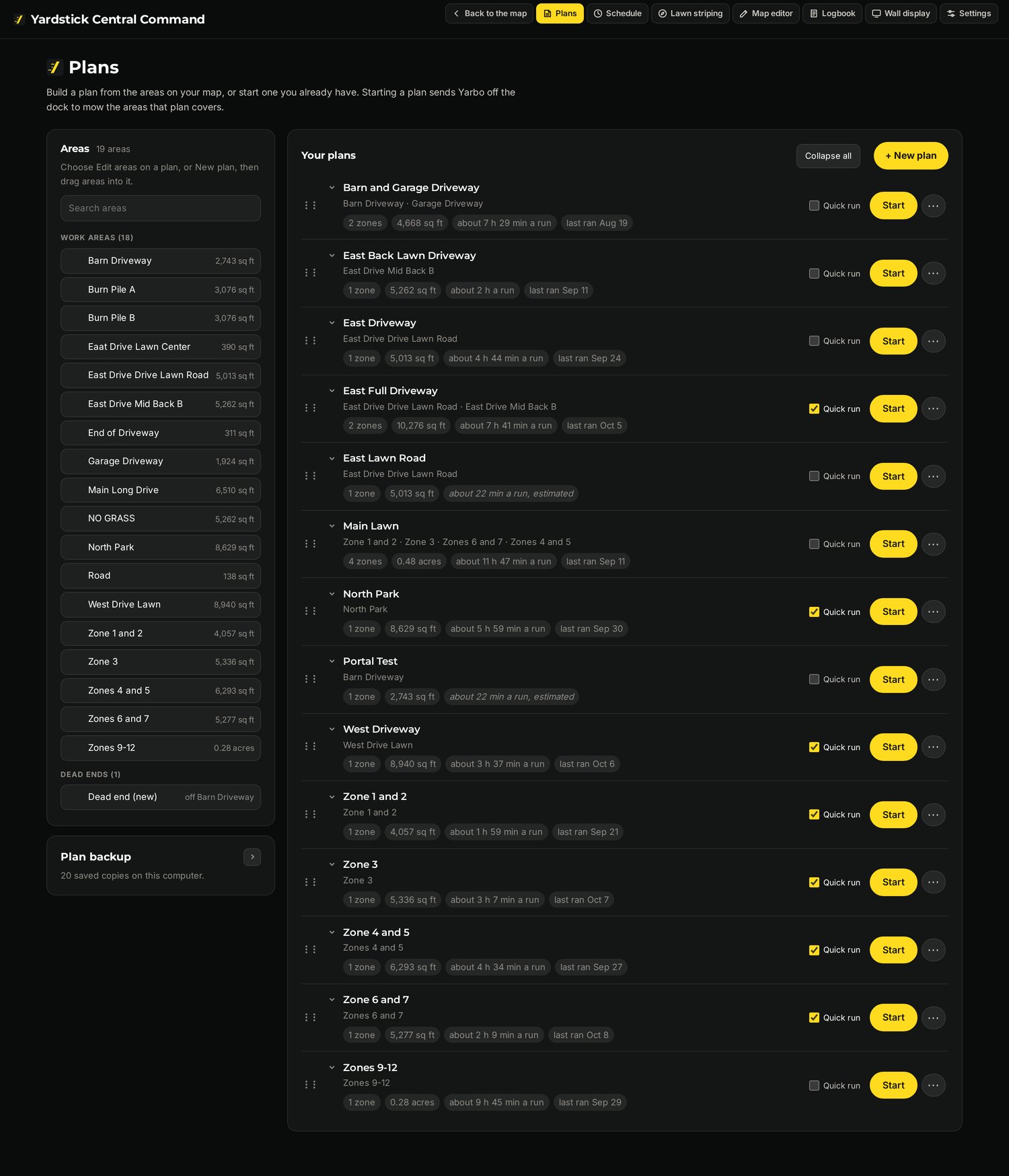
Every plan you’ve built in the Yarbo app is right here, ready to launch with one tap. On a multi-core site, a dropdown picks which core you’re sending. Then start the job, watch its progress live, and pause, resume or send it home, all from your own browser.

Pick a core, start the job

Choose the core from the dropdown, pick a plan, hit Start. The running job shows its progress, time left and battery, with pause, resume, and send-to-dock right there.

Select the core, then launch any plan, with live progress and controls
Every plan you built in the Yarbo app, each one tap from starting

Built for fleets

One Yarbo, or twenty. Yardstick runs them all

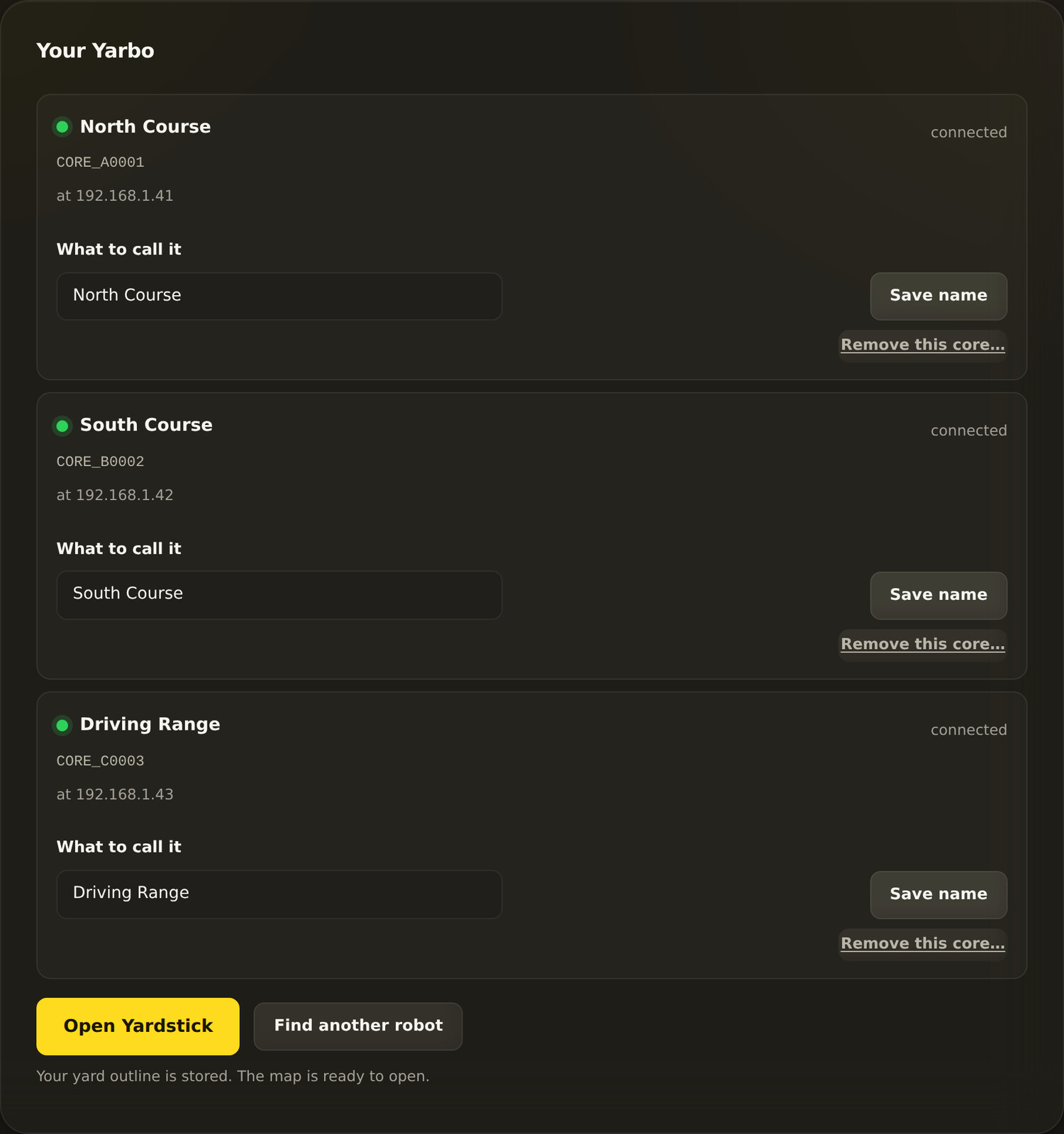
Golf courses, estates, campuses, sports fields, HOAs: if you run more than one Core, Yardstick handles the whole fleet out of the box. Name each machine, focus on one, or watch every core at once. No extra setup. No per-robot fee.

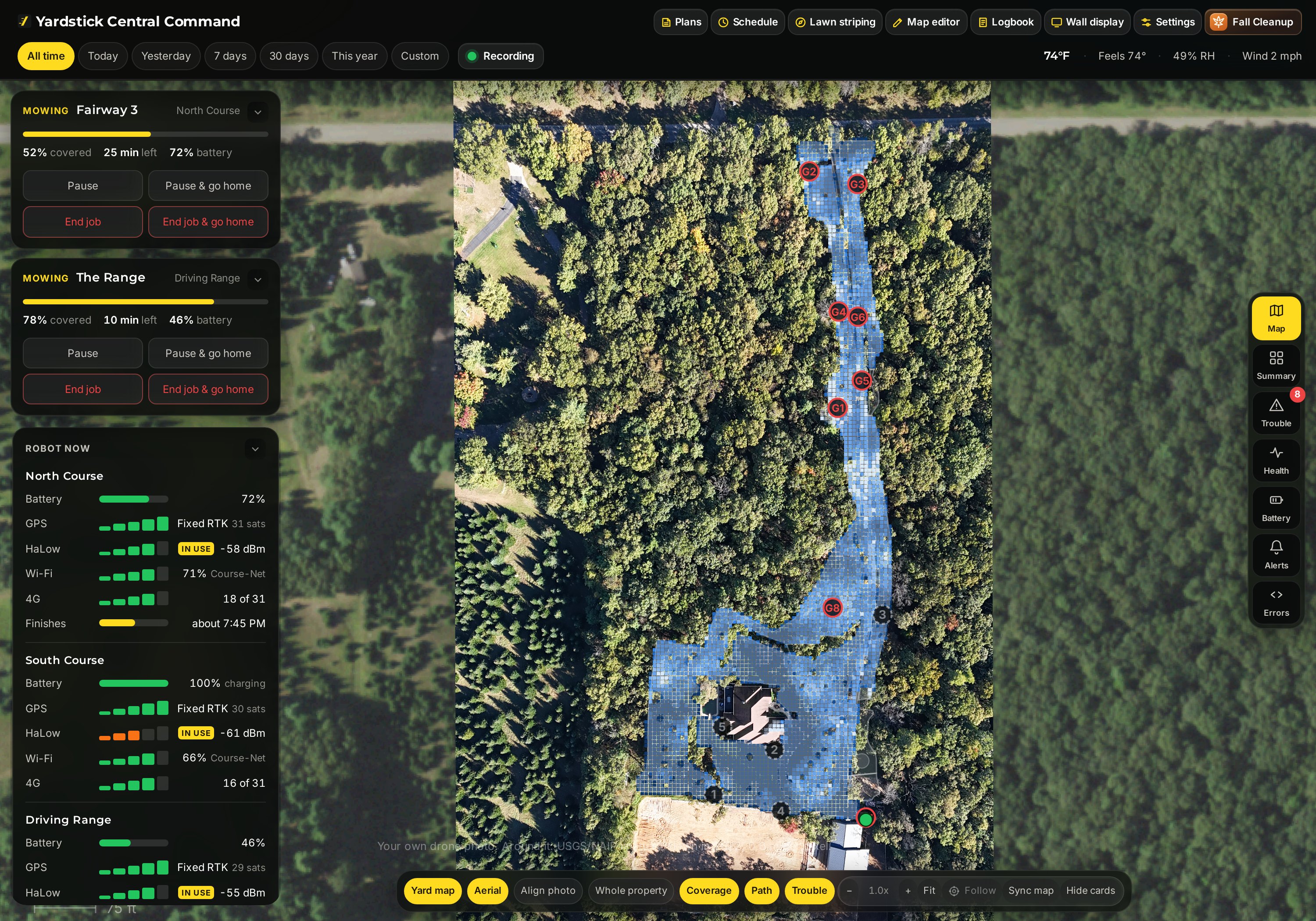
The whole fleet on one screen

Every core reports to the same Central Command. Pick one to dig into it, or leave it on all cores for the combined picture across every property you cover.

  • Name each core: “North Course”, “South Course”, the driving range
  • Per-core coverage, health, battery, plans and alerts
  • Alerts name the core, so you know exactly which one to walk out to
  • Add or retire a core in seconds, nothing to reconfigure
Central Command running a fleet: two cores mowing with their own job cards, and Robot Now listing every core with its battery, GPS and signal
Central Command across every core, or one at a time
Manage the fleet: name, add or retire a core, from one place

Pricing

One simple price. Everything included.

One price a year turns your robot from a black box into something you can see, tune and control. No tiers, no add-ons, no features held back. Free updates while your license is active.

Yardstick · full access

$34.95/year

14-day free trial, no credit card

  • ✓ A full desktop map editor: zones, no-go areas, paths and per-module settings
  • ✓ The full coverage map and all 21 data layers
  • ✓ Aerial imagery, health, battery and RTK diagnostics
  • ✓ Alerts by screen, phone and email
  • ✓ Plans, scheduling and the wall display
  • ✓ One computer (Windows, Mac or Linux), unlimited robots / cores
  • ✓ And much more…
Start your free trial Buy a license

Cancel any time · one computer, unlimited robots / cores

Questions

Good to know before you start

Why should I pay for this? What does it do that the Yarbo app doesn’t?

The Yarbo app shows you the moment; Yardstick remembers everything and turns it into something you can act on. It maps where your robot works well and where it struggles, warns you the instant something goes wrong, and gives you a full desktop map editor to fix problems in seconds. It runs on your own machine and plugs into Home Assistant. One price a year turns your robot from a black box into something you can see, tune and trust.

My robot struggles in the same spot every time. Can Yardstick show me why?

Yes, and this is the heart of it. Yardstick paints your whole yard as a coverage map across 21 data layers, so the trouble spot you keep noticing stops being a mystery. You can see the patch under a tree where the precise GPS fix drops and the robot falls back to a rougher signal, the corner where it loses its lock, the place it slows or reroutes. Problems the app never records, and that you would otherwise only guess at, become a picture you can point to and fix by trimming a branch, moving the antenna, or drawing a no-go zone.

Can I edit my map and fix bad routes from my computer?

Yes. Yardstick has a full desktop map editor: draw and adjust work zones, no-go areas and travel paths, and set per-module options for the mower, leaf blower or SAM, all with a mouse on a real screen. The fiddly things that take forever on a phone, like nudging a boundary back off a flower bed or splitting one overgrown zone into two, take seconds.

Can I get my stripes to line up across the whole yard?

Yes, and this is one people ask for by name. Yarbo turns its mowing pattern a few degrees after each run so the grass is not pressed the same way twice, but it counts separately for every area, so over a season your zones drift out of step and you can see a seam wherever two of them meet. Yardstick sets one direction for the whole property and steps every area round together, by however much you choose. It is set in Yardstick, not in the map editor, and applies on the next scheduled run.

Will it tell me when something goes wrong?

Yes, by on-screen banner, phone and email. Yardstick watches for the things you would otherwise find out about hours later: the robot stuck or stranded in the yard, unable to get back to its dock, a battery running low far from home, a lost GPS fix, or a firmware change. You hear about it when it happens, not when you walk outside.

Does it work with Home Assistant or my smart home?

Yes. Yardstick can feed your robot’s live status, battery, position and alerts into Home Assistant, so you can put it on a dashboard or build automations around it: pause on rain, get a notification when a job finishes, whatever you like. The data is yours to use however you want.

Where does my data go?

Nowhere. Yardstick records to a database on your own machine and shows it in your own browser. Your coordinates, your map, your recordings and the names you gave your areas are never uploaded to us, and there is no Yardstick account to create. You sign in with the Yarbo account you already have, and those credentials stay on your own computer.

Which robots does it work with?

A Yarbo 2024 or newer Core, with any of its modules: mower, snow blower, leaf blower or SAM. Yardstick reads the robot’s own telemetry, so it records and maps whatever attachment is on. You also need a Yarbo Data Center, the base station that comes with the robot.

What do I need to run it?

A computer running Windows, Mac or Linux. Something always-on (a mini-PC, a spare laptop, a Raspberry Pi) is ideal, since it records while the robot works.

Can I try it, and what does it cost?

Yes, a full 14-day trial, every feature, no credit card. After that it is one simple price, $34.95 a year, with everything included: no tiers, no add-ons, and free updates while your license is active. Cancel any time.

How do I cancel, or change my card?

Yes, from Stripe's own billing page at yardstickhome.com/manage. Enter the email address you paid with and Stripe emails you a sign-in link, so there is no password and you do not need Yardstick installed. That means it still works if the computer is gone. Canceling takes effect at the end of the period you have already paid for, so you keep what you bought, and nothing is deleted: your recordings stay on your own disk.
Start seeing what your Yarbo really does.

Install it, let it record one job, and open the map. The rest speaks for itself.